Invite members using the SmartThings App
 Please Note: The information on this page is for Australian products only. Models, sequences, error codes or settings will vary depending on location and/or where the product had been purchased. To be redirected to your local support page please click here.
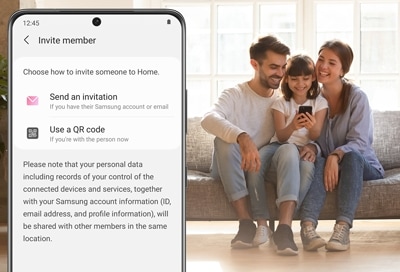
The more, the merrier. You can let your family or friends use your smart devices by inviting them to be members of your SmartThings account. Just send an invitation for a specific location in your account, and if they accept, they'll become members. After accepting, they will be able to control or manage any of the connected devices in that location.
Note:
- Inviting members is only available for locations. You cannot add a member directly to a room, only the main location.
- The SmartThings App is available on Android and iOS devices. A Wi-Fi connection and a Samsung account are required. Data fees may apply.
Invite Members to your SmartThings Home
You can invite people to join certain locations in your account through their Samsung account. Once they’ve accepted your invitation, you will both be able to use the same smart devices. There are a few different ways you can invite someone - QR Code, Email, or via a link.
Step 1


In the SmartThings app, tap the Three Dots on the homepage.
Step 2


In the dropdown menu, select Invite Member.
Step 3


Choose your method of invitation.
Step 4


Enter the details (if applicable), and then hit Send when done. You can also alter the permissions that you are inviting the member to have.
Note:
- If the person you want to invite does not have a Samsung account, you can use a regular email to send an invitation.
- When an invitation is sent via an email that is not associated with a Samsung account, the person will be prompted to sign up for a Samsung account before being able to accept your invitation.
Accepting the Invitation
It's not a party unless everyone is invited. To receive an invitation, the person you want to invite must have the SmartThings app installed on their phone and be signed into their Samsung account.
They'll get the invitation as a notification on their phone. All they have to do is tap the notification, then tap Accept. Once this is complete, they can control the devices added in that specific location.
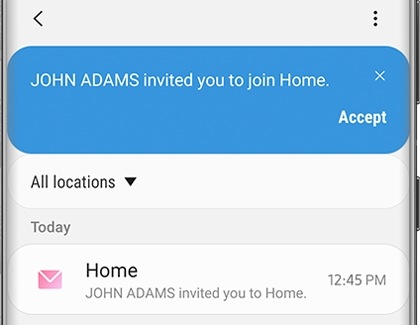
Another option is to open SmartThings and tap Menu (the three horizontal lines). Tap Messages; a message will appear that informs the user of the invitation. They can tap the notice, then tap Accept to be added as a member.
View or Remove Members
If someone doesn't use SmartThings anymore, the owner of the location can remove their membership. You can also view all members in a location in case you lose track of who has been added.
Step 1


In the SmartThings app, tap the Location dropdown and select Manage Locations.
Step 2


Select the location you wish to remove or view members in.
Step 3


Select Members from the settings menu.
Step 4


Here you can view all members registered to the location. Select the Member you wish to remove.
Step 5


You can change the access level, or tap Remove Member to remove.
Step 6


Hit Remove again to confirm.
Note:
- Only the owner of the location can remove members.
- The member’s devices will be deleted when you remove the member.

For further assistance, please contact our Chat Support. To find your Samsung product's User Manual, head to Manuals & Downloads.
Thank you for your feedback!
Please answer all questions.
Contact Info
Contact us
WhatsApp
![]()
![]()

