How to use Audio Eraser on a Samsung Galaxy Phone
Last Update date : Nov 09. 2026
Unwanted background noise — like wind, traffic, or crowd chatter — can ruin otherwise great video recordings. With the Audio Eraser feature in Samsung Galaxy's built-in video editor, you can easily isolate audio tracks, reduce background noise, and fine-tune your sound layers directly on your device.
Please Note: This guide is designed for Australian variant Galaxy devices, if you have an international device and require further support click here to get in touch with your Samsung subsidiary.


1
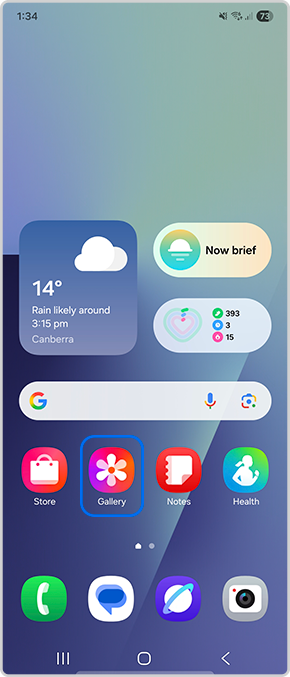
Launch the Gallery app
![Open Gallery app]()
2
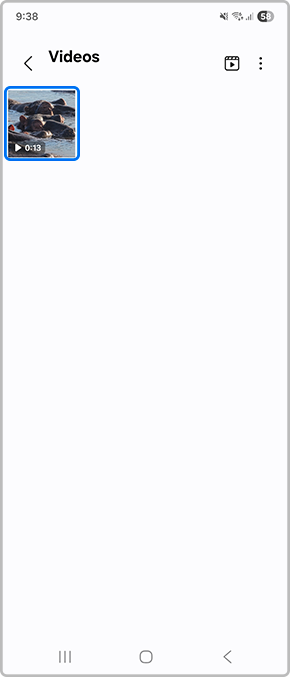
Select the video you would like to edit
![Select video]()
3
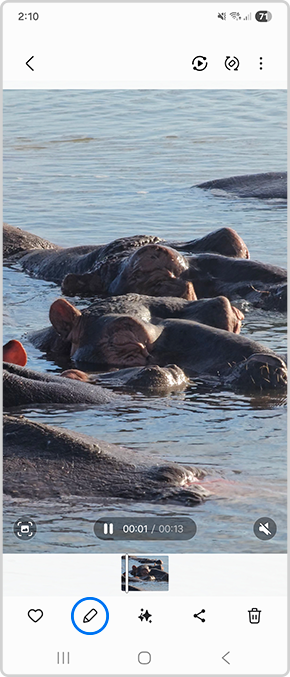
Tap the Edit button
![Tap on pencil icon to edit]()
4
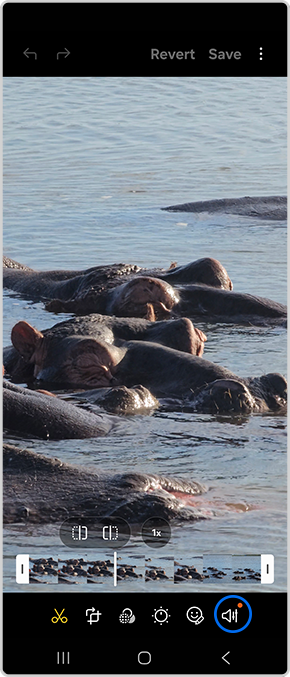
Select the  Audio setting
![Tap on Audio setting]()
 Audio setting
5
Tap on Audio Eraser
![Tap on Audio Eraser]()
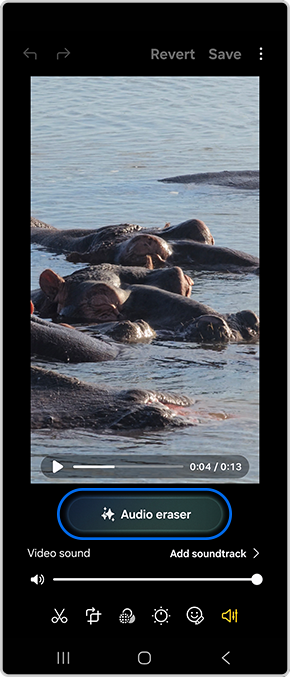
6
Tap on OK
![Tap on OK]()
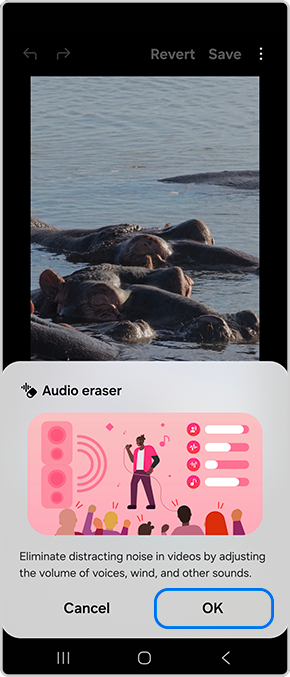
7
Choose between Auto, Voices, Wind or Noise
![Choose preferred audio setting]()
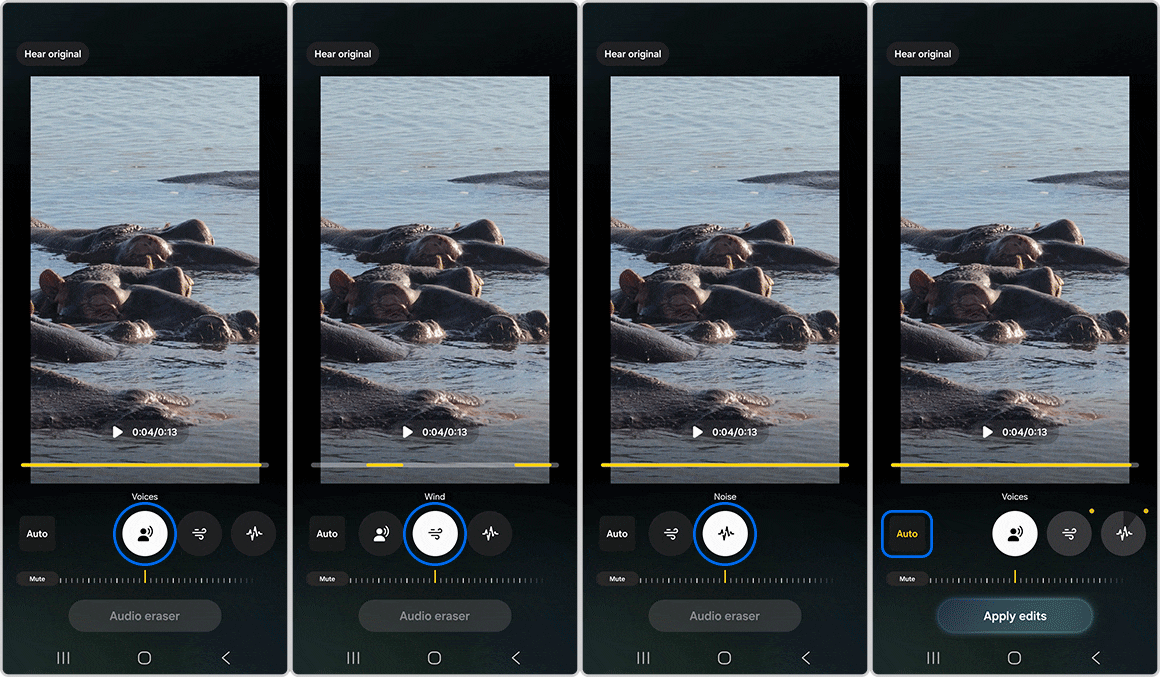
8
Then tap on Apply edits
![Select Apply edits]()
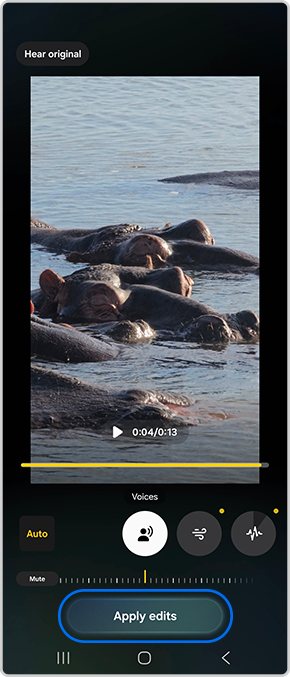
9
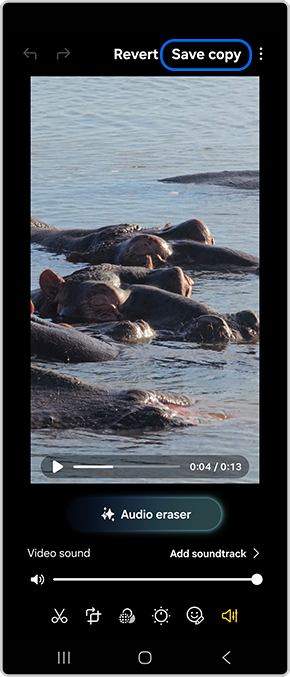
Select Save copy to apply the changes
![Tap on Save copy]()
Thank you for your feedback!
Please answer all questions.
Contact Info
Contact us
For support buying a product, help with an order or technical product support
WhatsApp
![]()
![]()


It's now even easier to get in contact with Samsung Customer Care, now on WhatsApp.
Troubleshoot and book a repair
Support for your mobile devices, home appliances, TV and computing products