View your step count in Samsung Health
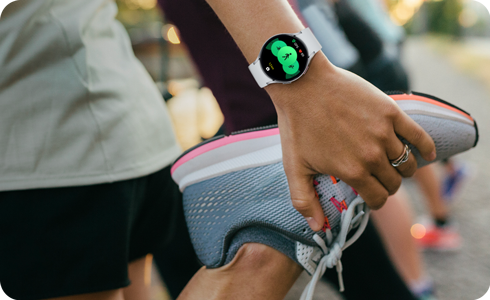
Samsung Health uses the pedometer on your connected device, such as your phone and Galaxy Watch, to measure your steps. Your step count is an estimate that can be affected by various movements and where you keep your phone. Distance is calculated based on your step count and estimated stride length, which depends on your height and walking cadence.
Note: For optimal results, keep the software and the Samsung Health app on all of your devices updated.
Set up and View Steps on your Phone
Step 1


Open the Samsung Health app.
Step 2


Tap the Exercise tab icon on the menu.
Step 3


Tap the Steps card on the Home tab.
Step 4
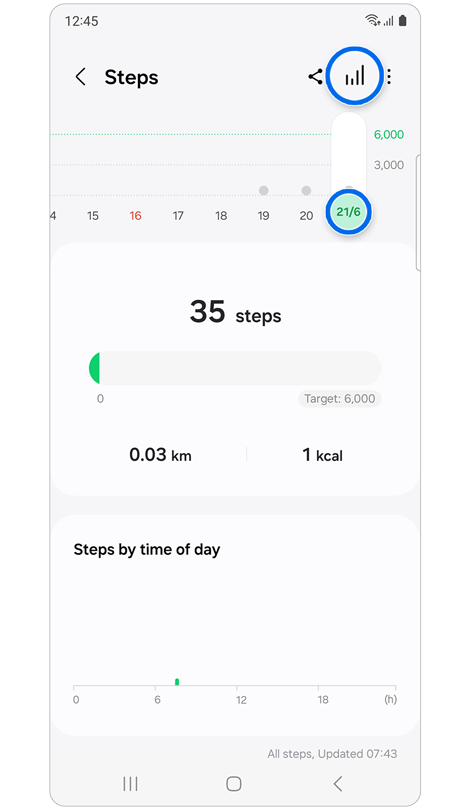

Tap the dates at the top to view your step count by date, or tap the Expand chart icon to view your step count history.
Step 5
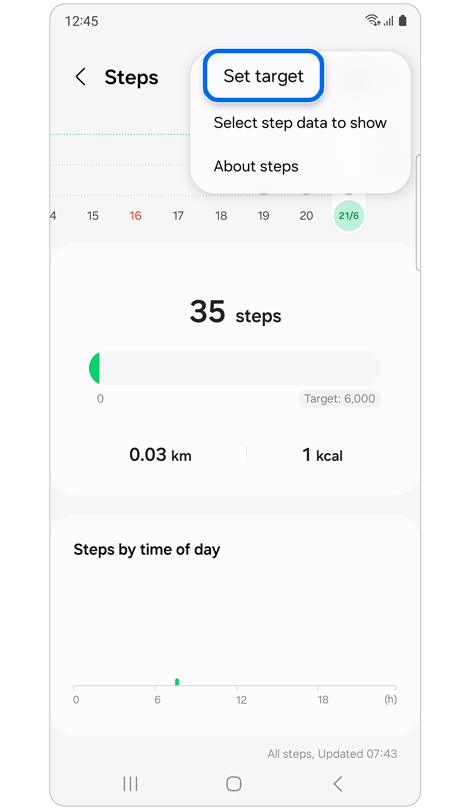

Tap More options (three dots), then tap Set target.
Step 6
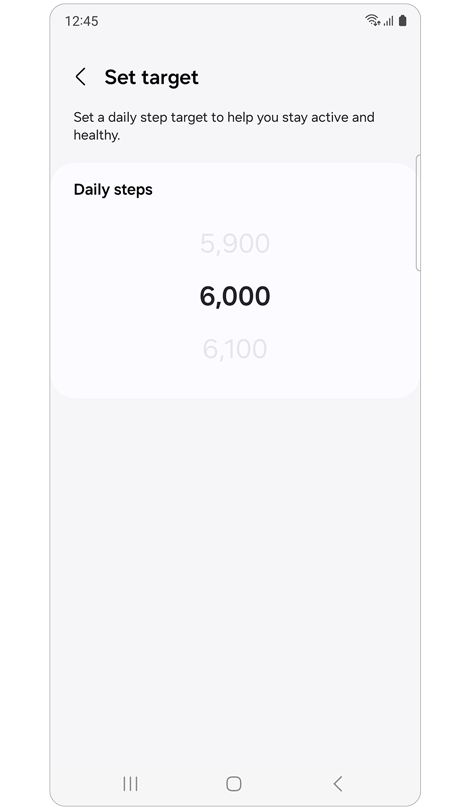

Swipe up or down to set a daily step target.
Note: Some devices cannot be viewed individually.
Set up and View Steps on your Galaxy Watch
Add a Steps Tile to see how many steps you've taken
Step 1


Swipe left on the Home Screen until you reach Add tiles, then tap the plus sign.
Step 2


Tap the Steps tile to add, then tap the added tile to view the details.
Step 3


Scroll down to see your step count, distance, activity graph, and a button to set your step target.
Set your target number of steps
Step 1


On the Home screen, swipe left to the Steps tile and tap to select.
Step 2


Scroll to the bottom and tap Set target.
*The "Show on phone" menu only appears when your Galaxy Watch and phone are synced.
Step 3


Swipe up or down on the number to select your step count goal, then tap Done.
For further assistance, please contact our Chat Support. To find your Samsung product's User Manual, head to Manuals & Downloads.
Thank you for your feedback!
Please answer all questions.
Contact Info
Contact us
WhatsApp
![]()
![]()

