How to scan a QR code on your Galaxy device
QR codes allow you to access and share information quickly and easily. On Samsung Galaxy devices, you can scan them in three ways:
- Bixby Vision: Scan QR codes directly from the camera to access content instantly.
- Samsung Internet: Use the browser’s built-in tool to read QR codes automatically.
- Camera App: Just point at the QR code to access links, contacts, locations, or other associated information.


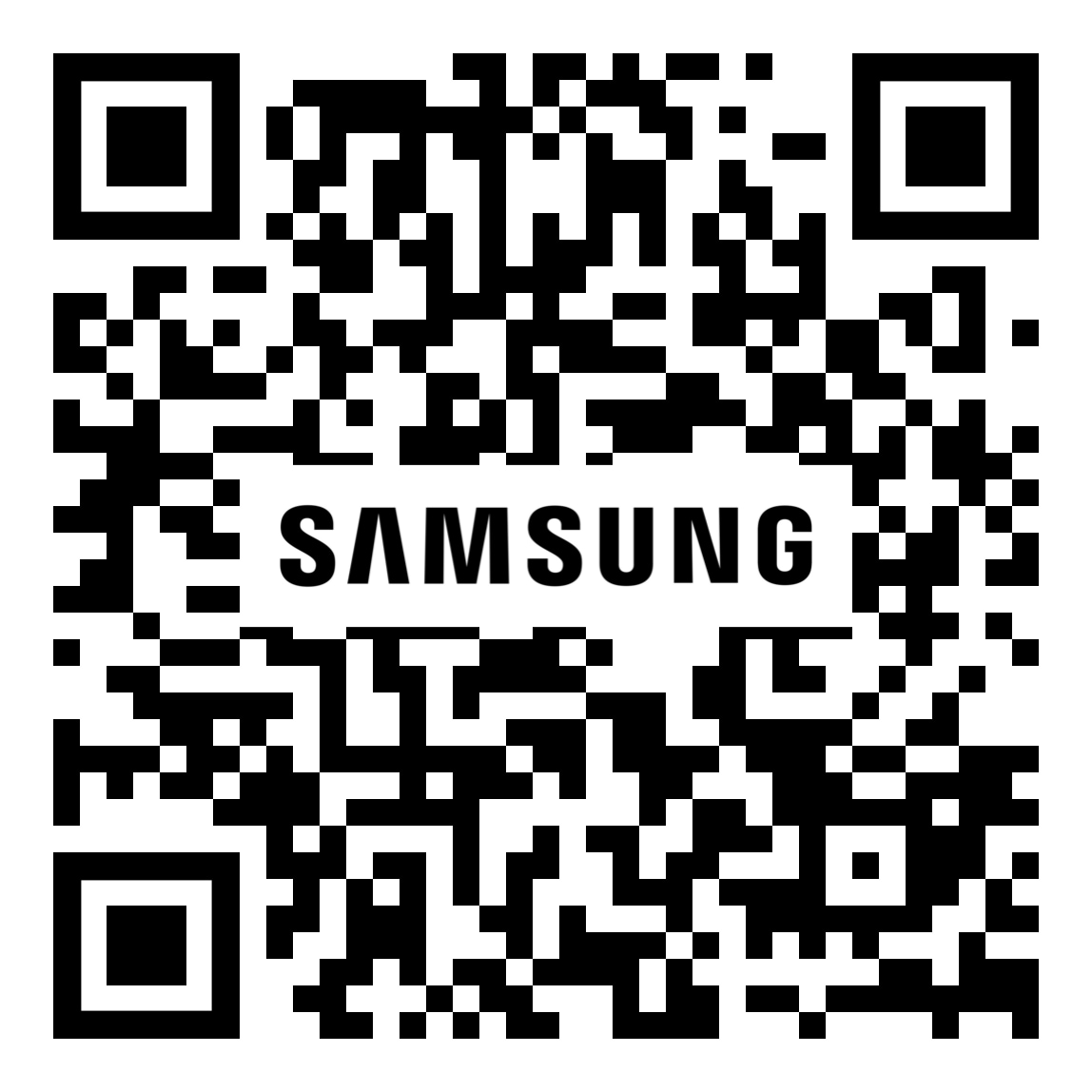
Note: The process of reading the QR code will vary depending upon which model you own
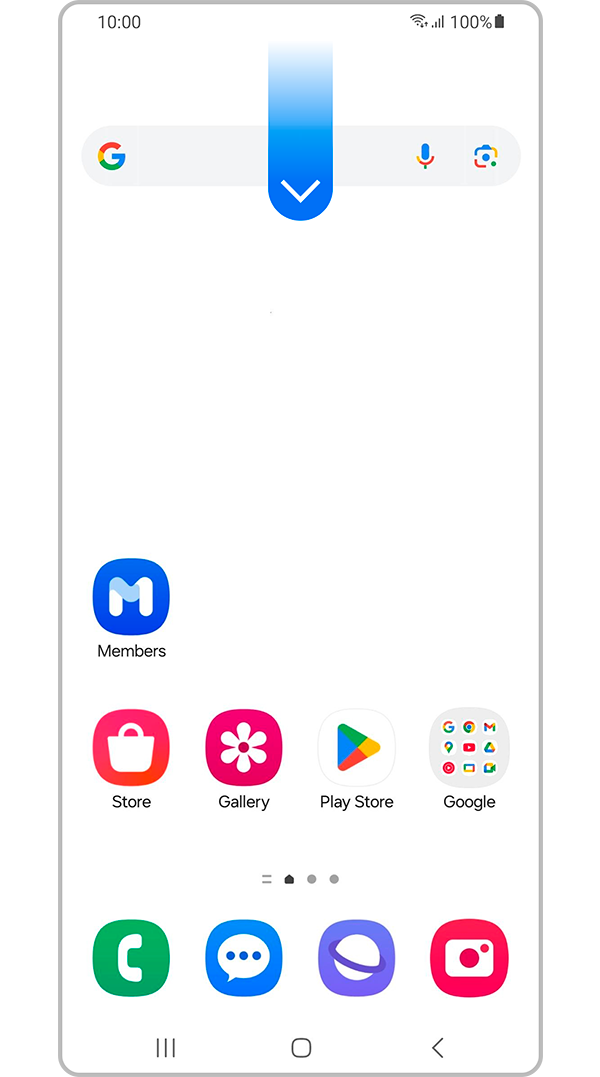
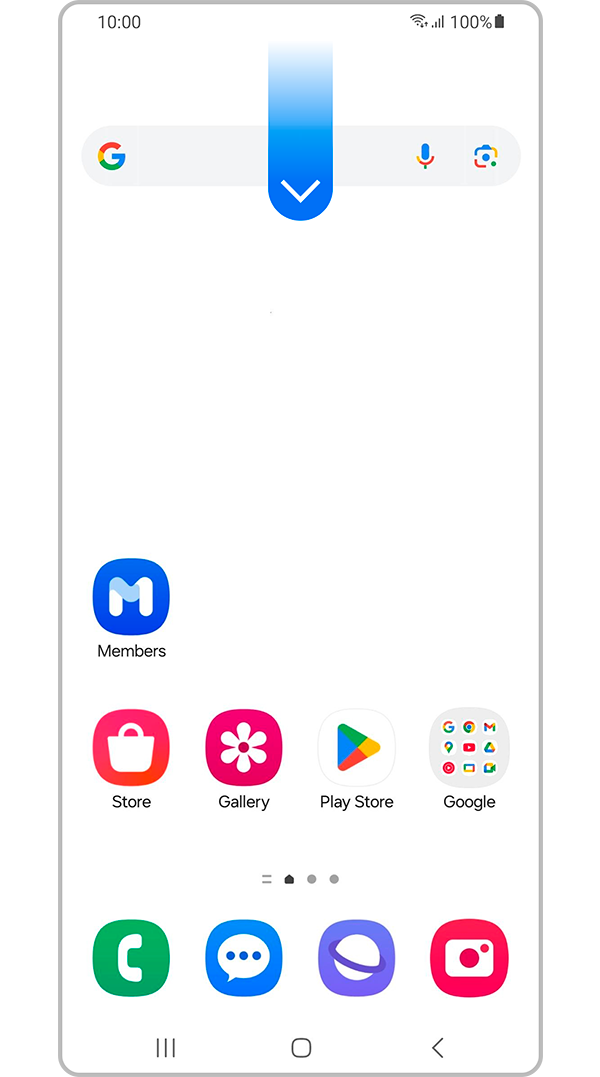
Step 1. Swipe down on your device and locate the notification panel.
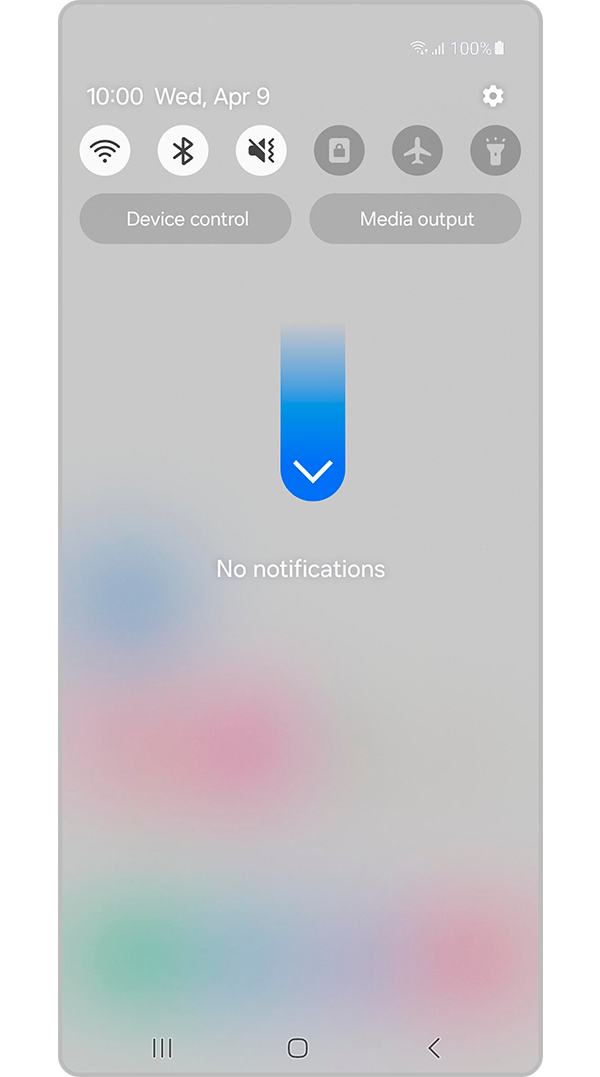
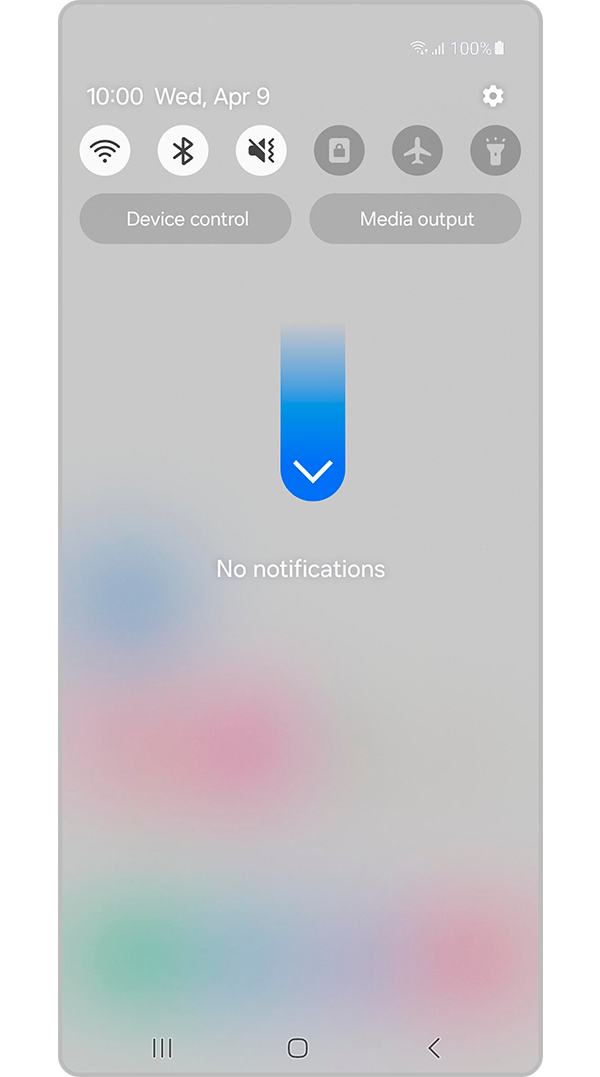
Step 2. Swipe down the notification panel again.


Step 3. Find the Scan QR Code icon and activate it.
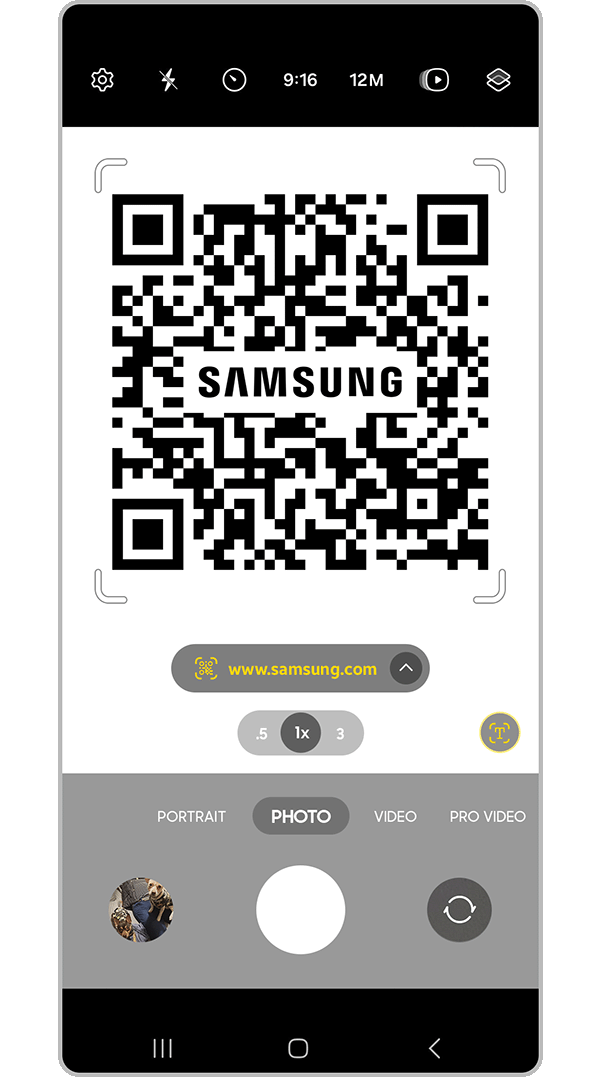
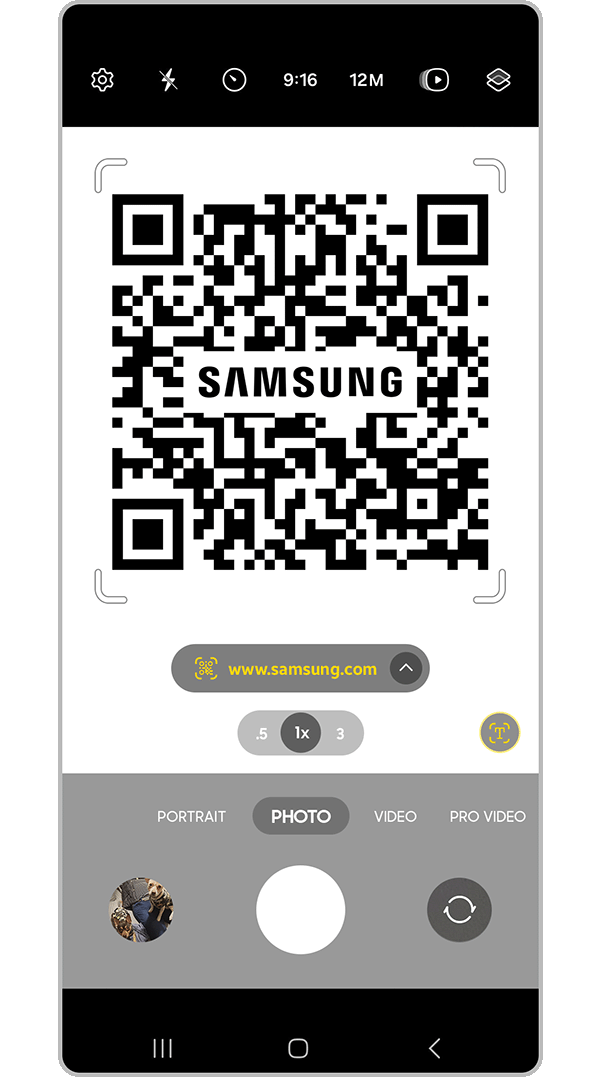
Step 4. Proceed to Scan the respective QR code.
Note: If the Scan QR Code icon doesn't appear in your device's notification panel, you'll need to edit and add the icon from the available buttons.
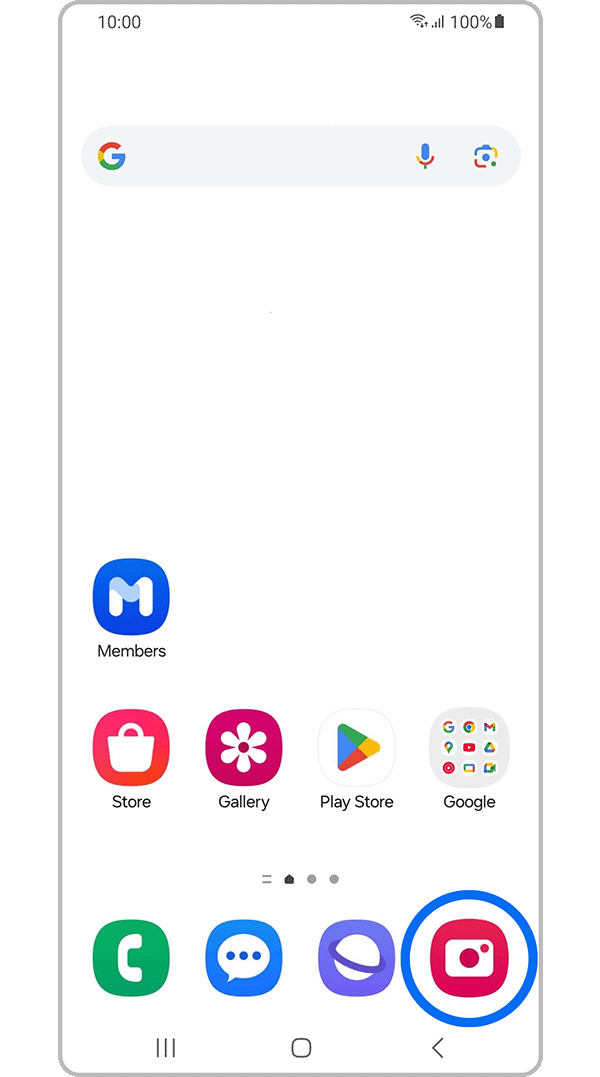
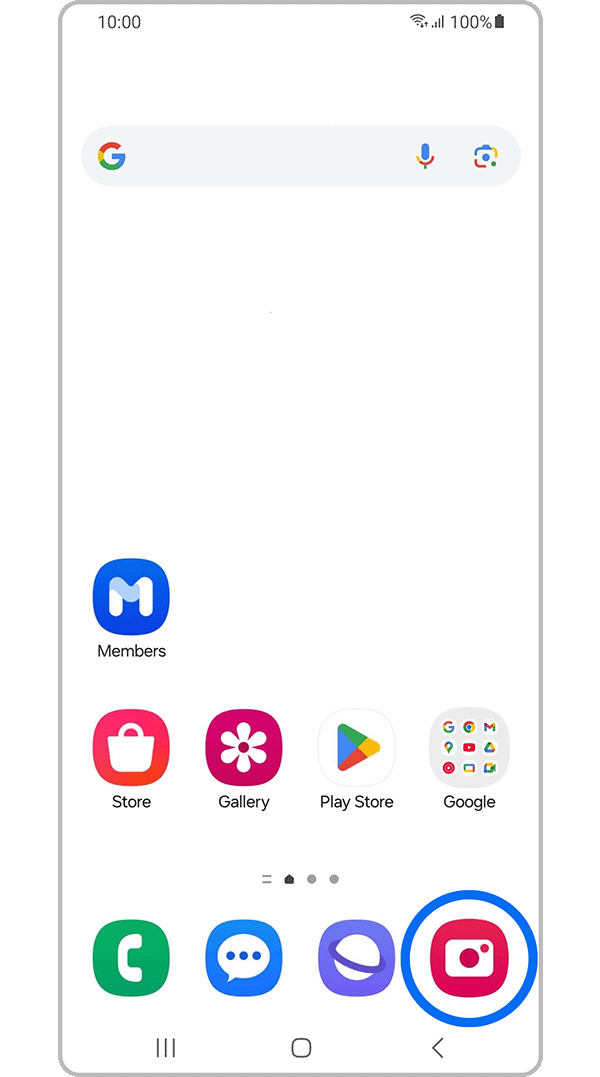
Step 1. Open the camera app.
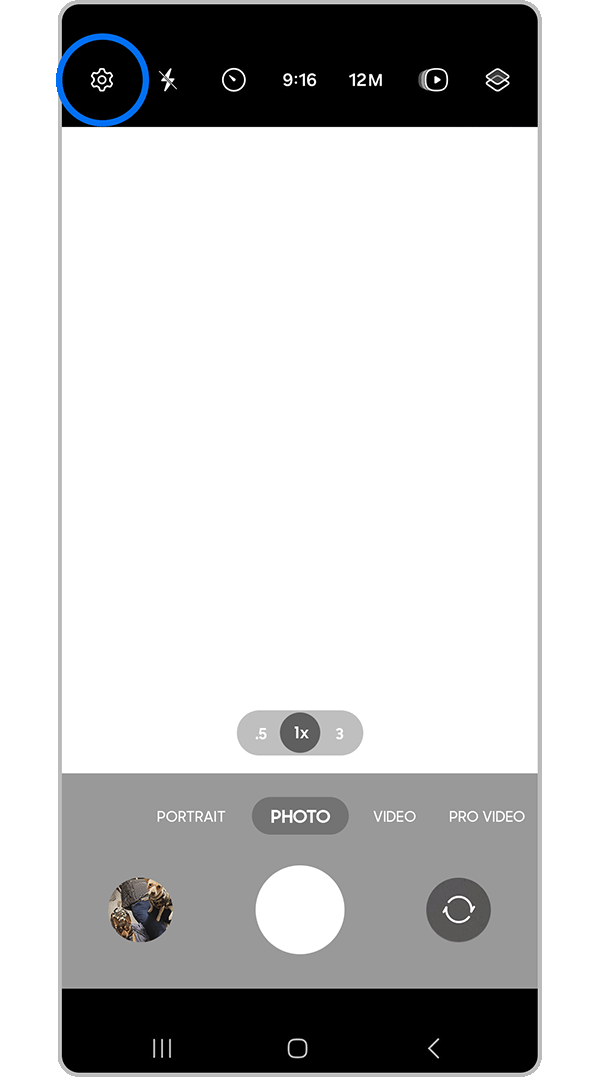
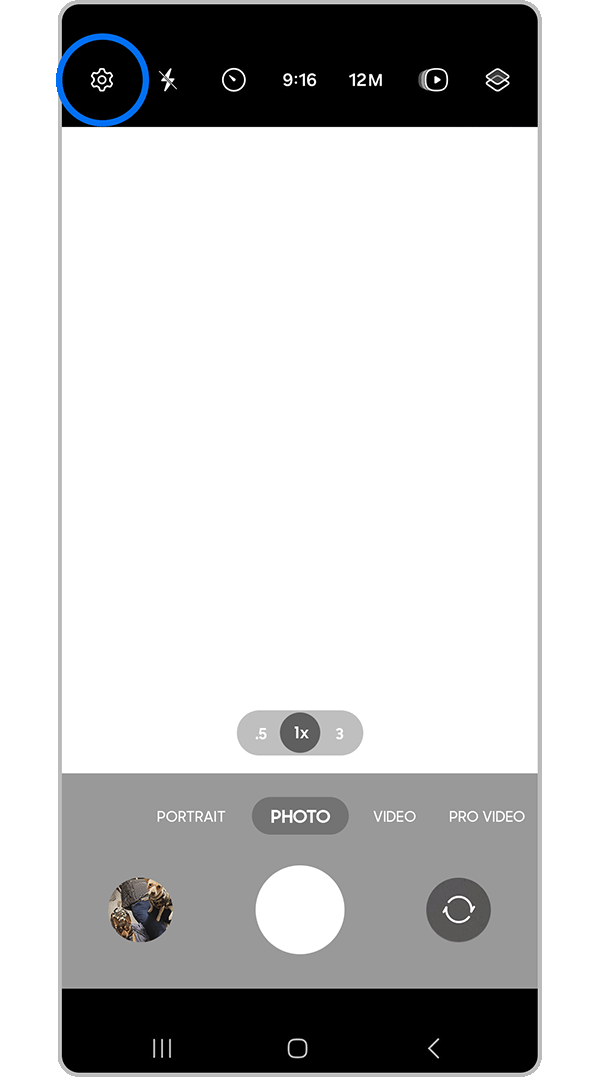
Step 2. Go to Camera Settings.
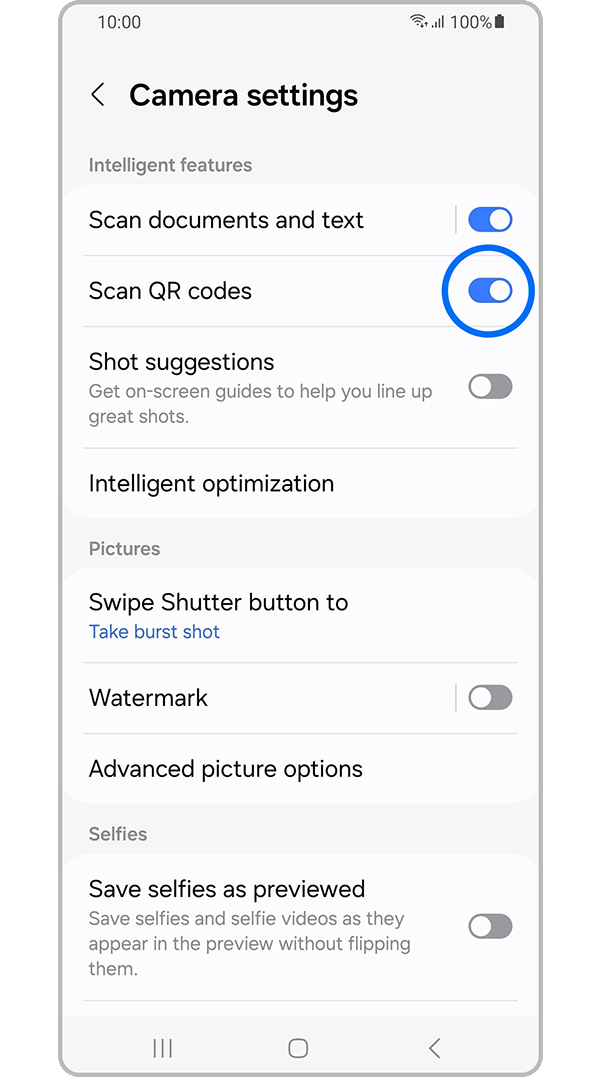
Step 3. Activate the Scan QR codes feature.
Step 4. Return to the camera app and Scan the QR code.


Service Centers


Locate the nearest Samsung service center to have your product checked.

Thank you for your feedback!
Please answer all questions.
Contact Info
WhatsApp
![WhatsApp]()
![WhatsApp]()


Monday to Sunday
8:00 a.m. a 12:00 a.m.
LiveChat
![LiveChat]()
![LiveChat]()


Monday to Sunday
8:00 a.m. a 12:00 a.m.