How to troubleshoot TV screen flickering
Were you watching tv and the screen started flickering? You may wonder if something is wrong with your device. In most cases you can check and fix the problem with a few simple steps, follow the steps below to get back to watching TV.
Be aware, unlike analogue TVs, digital TVs may flicker or freeze due to a weak broadcast signal. This is not a device issue, but an issue with the broadcast signals reception status, or an external device cable connection. Please follow our video or the guide below.
Script: How to troubleshoot Samsung TV screen flickering
If you were watching TV and your screen started flickering, you might wonder if something’s wrong with your TV. You can check and try to fix the problem with a few simple steps. The issue may not be with your TV itself, but with a weak broadcast signal or an external device’s cable connection. In this video, we’ll walk you through how to fix the problem.
Before you start, check if your TV is due a software update, as this may fix the problem:
- Press the Home button on your remote and navigate to Settings.
- Select Support, then Software Update.
- Select Update now.
To check your antena connection and signal information, try the following methods:
Method 1: Check the antenna connection
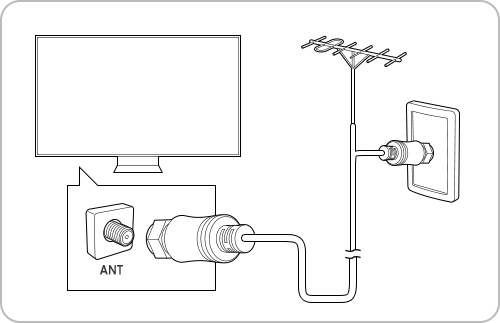
- First, disconnect the antenna connection line and reconnect it, making sure it’s properly connected properly.
Method 2: If you have a digital TV, you can also check the digital channel strength:
- Press the Home button, then navigate to Settings.
- Select Support, then Device Care.
- Select Self Diagnosis.
- Select Broadcast Signal.
If the antenna signal is less than 4, or the SNR is less than 20, this means the broadcasting signal is weak. In that case, please contact your broadcasting company for further information.
To check the HDMI cable connection, you can try two methods:
Method 1: check external input cable for set top box
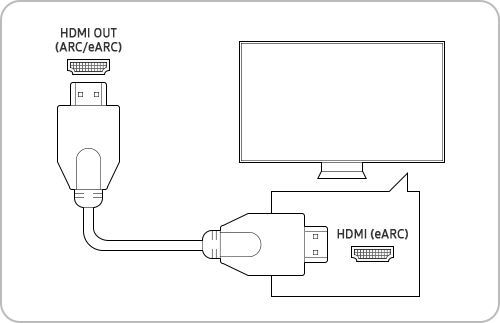
- If you’re using a set-top box, check the external input cable (HDMI) is connected properly.
- Some issues can occur due to problems with the broadcast signal or external device signals, so please contact your service provider for a signal check.
Method 2: check if the connected HDMI cable is in good connection
- Press the Home button on your remote and navigate to Settings.
- Select Support, then Device Care.
- Select Self Diagnosis.
- Select HDMI Test.
If you’ve followed all these steps and you’re still experiencing issues, please visit samsung.com/uk/support for further assistance.
Update TV software
It is important to check if your device's software and related apps are updated to the latest version. To update your TV’s software, follow these steps:


Please note:
- If you are having trouble with your Samsung TV, always check to see if any software updates are available, as this may fix your problem.
- Device screenshots and menus may vary depending on the device model and software version.
Check the antenna and signal information
Method 1: Disconnect the antenna connection line and reconnect it, ensure it is connected properly.
Please note:
- If your TV is attached to a separate, over-the-air antenna, you can use the signal strength information to adjust the antenna for increased signal strength and improved HD channel reception.
Method 2: For digital TVs, check the digital channel strength. If the number of antenna signals is less than 4 or the SNR is less than 20, the broadcasting signal is weak, please check with your broadcasting company for further information.


Please note:
- This function is only available for digital channels
- This function may not be supported depending on your geographical area.
Check the HDMI cable connection
Method 1. If you are using a set-top box, check the external input cable (HDMI) is connected properly, as issues can occur due to problems in the broadcast signal or external device signals. Please contact your cable broadcaster for a signal check.
Method 2. Check if the connected HDMI cable is in good condition


Please note:
- If you followed the steps listed above but the issue persists, please contact Samsung Support.
- Device screenshots and menus may vary depending on the device model and software version.
Thank you for your feedback!
Please answer all questions.