Protect your Galaxy device with the Auto Blocker feature
When you enable the Auto Blocker feature, it can help protect your phone by preventing the installation of apps from unauthorised sources and blocking suspicious activity.

Please note:
- Starting with One UI 6.1.1, security features have been added, including Maximum Restrictions.
- Menu names, settings, and screen layouts may vary depending on the model and software version.
You can enable or disable Auto Blocker during initial device setup or at any time in Settings.


Step 1. Open Settings > Select Security and privacy.


Step 2. Tap Auto Blocker.


Step 3. Turn Auto Blocker on.
Please note:
- For devices that are updating to One UI 6.1.1 from a previous One UI version, the setting value for Auto Blocker remains the same as you previously set.
- When Auto Blocker is enabled, it can help block app installations from unauthorised sources. Apps downloaded from approved app stores, such as Galaxy Store and Google Play Store, can be installed.
Auto Blocker features are designed to help achieve the following:
Blocks apps from unauthorised sources
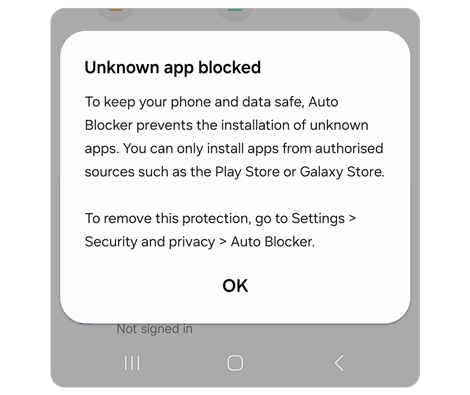
Apps from authorised sources, such as the Galaxy Store or Play Store, can be installed. If you attempt to install apps from unknown or unauthorised sources, you may receive a pop-up alert, and Auto Blocker will prevent you from continuing with the installation.
* If the app is determined to be safe, temporarily disable this feature and try again.
Blocks commands by USB cable
Malicious chargers, computers, and other devices won’t be able to send commands to your phone when connected using a USB cable. This prevents unauthorised access and manipulation of your device and data through USB commands.
Blocks malware images in messaging apps
Auto Blocker enables Samsung Message Guard to protect messaging apps. When you receive a message with an image that’s suspected of containing malware, the image will be blocked to keep you safe.
* Auto Blocker also applies to third-party messaging apps.
Blocks non-official software updates
Auto Blocker prevents the installation of system software that has not been authorised by Samsung, helping protect your device from potentially harmful software.
Auto Blocker features are designed to help achieve the following:
Auto Blocker provides extra-strong protection through the Maximum restrictions feature as an option for people who need more security. While enabling Maximum restrictions, some of your phone’s features will be restricted.
How to activate the Maximum restrictions feature


Step 1. Turn on the Auto Blocker feature > Tap Maximum restrictions.


Step 2. Turn on the switch to enable.
- Turns on App protection: Checks apps installed for malicious activity.
- Blocks device admin apps: Prevents activation of device admin apps and work profiles to protect against potential malicious attacks.
- Blocks 2G networks: Prevents your device from connecting to older 2G networks, helping reduce the risk of network interception and personal data theft. In areas where only 2G service is available, calls, messages, and mobile data may not work while this setting is enabled.
- Blocks auto reconnection to non-secure Wi-Fi networks: Prevents automatic connections to previously used unsecured Wi-Fi networks, helping reduce the risk of unauthorised access to your data. You can still connect to these networks manually if needed, including Open, Enhanced Open, and WEP networks.
- Blocks hyperlinks and previews: Prevents hyperlinks and preview images from appearing in messages containing web addresses, helping protect you from accidentally opening malicious websites. To visit a trusted link, copy and paste or type the web address into your browser.
- Blocks shared albums: Protects you from sharing sensitive information and accepting invites from unknown senders.
- Removes location data when sharing pictures: Prevents the recipient from being able to determine where the picture was taken when you attach a picture to a message in Samsung Messages or share a picture from Samsung Gallery.
Q. A pop-up appears when I try to install the downloaded APK file, and it says that it can't install the app.
A. The Auto Blocker feature automatically seeks to block files downloaded from sources other than authorised stores, such as Galaxy Store or Play Store. If the app is determined to be safe, temporarily disable this feature and try again.
Q. Apps that I installed and used well on my previous device are not installed on my newly purchased device.
A. The Auto Blocker feature automatically seeks to block files downloaded from sources other than authorised stores. For Galaxy devices released with One UI 6.1.1, the Auto Blocker feature is set to On by default. If the app is determined to be safe, temporarily disable this feature and try again.
Q. Apps I downloaded are not updating.
A. If the Auto Blocker feature is turned off and the app was downloaded from a source other than an authorised store, it cannot be updated while the Auto Blocker feature is on. If the app is determined to be safe, temporarily disable this feature and try again.
Q. Work apps or apps in a work profile aren’t installing or updating.
A. The Auto Blocker feature automatically seeks to block files downloaded from sources other than authorised stores. If the app is determined to be safe, temporarily disable this feature and try again.
Thank you for your feedback!
Please answer all questions.