How to manage files on your Galaxy Phone
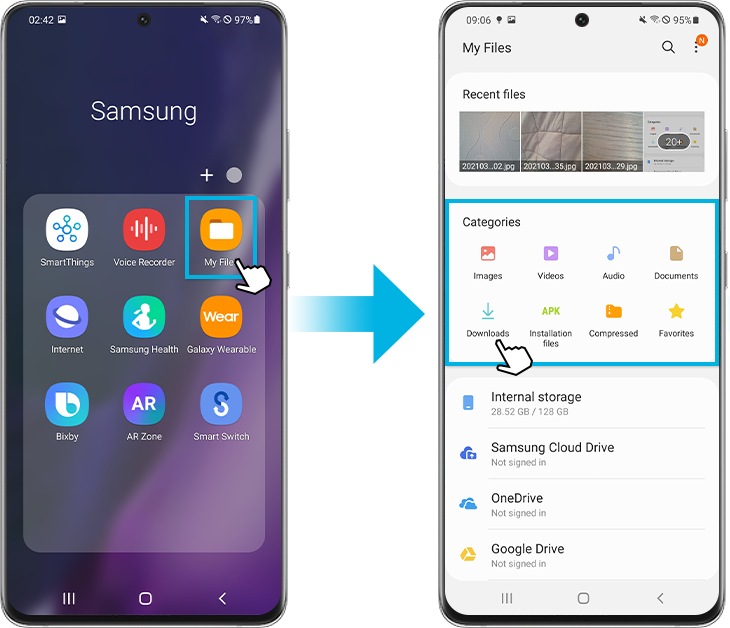
How to Manage Files on Your Samsung Galaxy Phone
Managing files on your Samsung Galaxy phone is simple with the built-in My Files app. Whether you're organizing photos, moving files to an SD card, or freeing up storage space, this guide covers everything you need to know.
1. How to Access and Organize Files on Your Galaxy Phone
The My Files app on your Samsung Galaxy phone allows you to easily access and manage all your files, including documents, pictures, videos, and downloads. Here's how to get started:
- Open the My Files app from your home screen or app drawer.
- Browse your files using the categories (e.g., Documents, Pictures, Videos) or search for specific files using the search bar.
- Tap on any file to view or open it.
- Why this matters: Keeping your files organized helps you quickly locate important documents, media, and downloads.
2. How to Find Downloaded Files on Your Galaxy Phone
Downloaded files are automatically saved in the Downloads category within the My Files app. Here's how to find them:
- Open the My Files app.
- Tap on the Downloads tab under Categories.
- All your downloaded files will be listed here.
- Note: Some downloaded content, such as videos from streaming apps, may only be accessible within the app due to copyright restrictions.
3. How to Move Files to an SD Card on Your Galaxy Phone
If your device supports an SD card, you can move files from internal storage to the SD card to free up space. Here's how:
- Open the My Files app.
- Find the files or folders you want to move. You can search, browse recent files, or use categories to locate them.
- Touch and hold the file or folder, then tap Move or Copy.
- Go back to the main screen of My Files, then tap SD card.
- Navigate to the desired folder on the SD card and tap Move here to complete the process.
- Note: Galaxy S21 and newer models do not include an SD card slot.
4. How to Transfer Files Between Your Galaxy Phone and PC
You can transfer files between your Samsung Galaxy phone and PC using a USB cable. Follow these steps:
- Connect your phone to your PC using a USB cable.
- If prompted, tap Allow on your phone to grant access.
- Select Transferring files / Android Auto on your phone's Quick panel.
- Open File Explorer on your PC and browse your phone's files.
5. How to Delete Files on Your Galaxy Phone
To free up storage space, you can delete unnecessary files using the My Files app. Here's how:
- Open the My Files app and locate the file you want to delete.
- Touch and hold the file, then tap Delete.
- Tap Move to Trash. The file will remain in the Trash for 30 days before being permanently deleted.
- Note: The Trash feature may not be available on all device models.
6. How to Enable the Trash Feature in My Files
Ensure the Trash feature is enabled in the My Files app to recover accidentally deleted files. Here's how:
- Open the My Files app and tap More options (three vertical dots).
- Select Settings.
- Check that the switch next to Trash is turned on.
- Note: Menu layouts may vary depending on your device model and software version.
7. Supported Samsung Galaxy Devices
These steps apply to most Samsung Galaxy devices, including the Galaxy S24, Galaxy S25, Galaxy S26, Galaxy Z Fold, Galaxy Z Flip, and Galaxy A series. However, some features, such as SD card support, may vary by model.
Related Samsung Support Topics
Thank you for your feedback!
Please answer all questions.