How to manage app notifications and permissions on Galaxy
How to Manage App Notifications and Permissions on Samsung Galaxy Phones
Managing app notifications and permissions on your Samsung Galaxy phone ensures a personalized and secure experience. Whether you want to silence specific apps or restrict access to sensitive features like location or contacts, this guide covers step-by-step instructions for both Android and Samsung-specific settings.
1. Why Manage App Notifications and Permissions?
App notifications and permissions directly impact your device's performance, privacy, and user experience. Unwanted notifications can disrupt daily tasks, while excessive permissions may compromise personal data. Regularly reviewing these settings helps maintain optimal functionality and security.
- Prevent unnecessary interruptions from apps.
- Control access to sensitive data like location, camera, and contacts.
- Enhance device performance by limiting background activity.
2. How to Update Your Samsung Galaxy Device
Before adjusting app settings, ensure your device runs the latest software version. Outdated software can cause compatibility issues with notifications and permissions.
- Open Settings.
- Select Software Update.
- Tap Download and Install.
- Follow the on-screen prompts to complete the update.
3. How to Manage App Notifications
Customize app notifications to suit your preferences. Disable unwanted alerts or fine-tune specific notification types for individual apps.
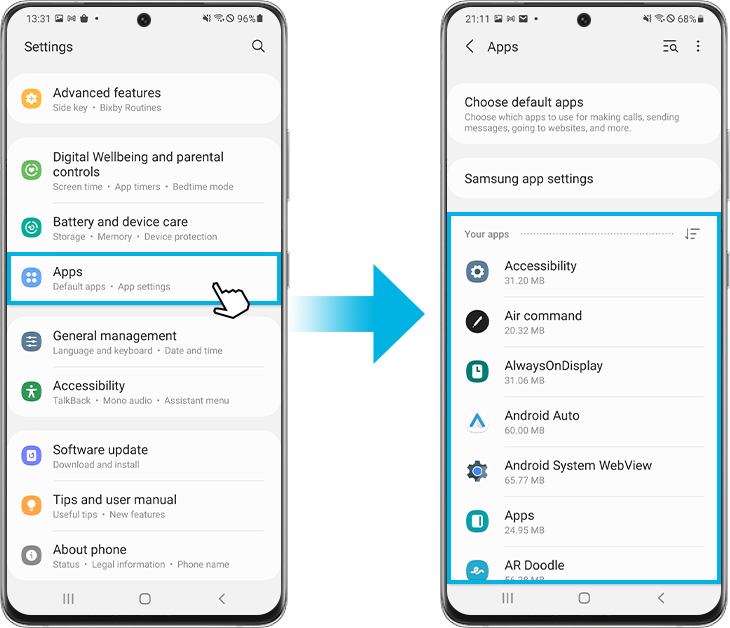
- Go to Settings and tap Apps.
- Select the app you want to manage from the list.
- Tap Notifications.
- Toggle Show Notifications to enable or disable notifications entirely.
- Choose specific notification categories (e.g., sounds, pop-ups) based on your needs.
- Note: Notification settings vary by app. Some apps may offer additional customization options.
4. How to Manage App Access Permissions
Grant or revoke app permissions to protect your privacy and optimize device performance. Permissions control access to features like location, camera, microphone, and contacts.
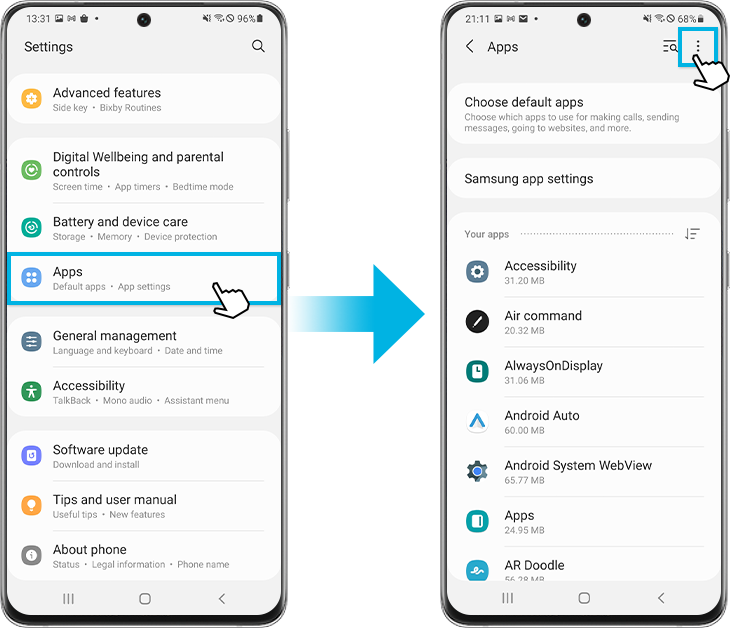
- Open Settings and go to Apps.
- Tap the three-dot menu and select Permission Manager.
- Review the list of permissions and tap on the feature you want to manage (e.g., Location).
- Select the app and choose one of the following:
- Allow All the Time: The app accesses the feature even when closed.
- Allow Only While Using the App: The app accesses the feature only during active use.
- Ask Every Time: The app requests permission each time it needs access.
- Deny: The app cannot access the feature.
- Note: Denying critical permissions may affect app functionality. A warning may appear if this occurs.
5. Additional Things to Check
Ensure a smooth experience by addressing potential issues related to notifications and permissions.
- Verify that your device's software and apps are up to date.
- Restart your device if changes don't apply immediately.
- Check for app-specific settings within the app itself for further customization.
6. Supported Samsung Galaxy Devices
This guide applies to most Samsung Galaxy devices, including the Galaxy S24, Galaxy S25, Galaxy S26, Galaxy Z Fold, Galaxy Z Flip, and Galaxy A series. Always refer to your device's specific settings menu for variations.
7. Related Samsung Support Topics



Thank you for your feedback!
Please answer all questions.