how to transfer and backup data using smart switch on a galaxy phone
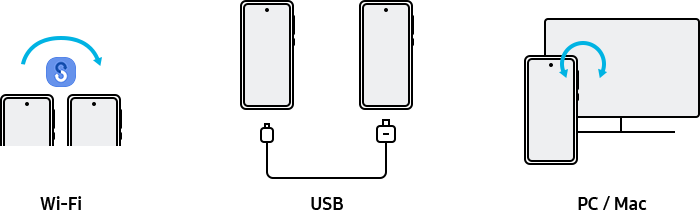
Smart Switch makes it easy to transfer your data from an old phone to a new Samsung Galaxy device. Whether you're moving from an Android, iOS, or other platform, this guide covers all transfer methods, supported data types, and troubleshooting tips.
1. What is Smart Switch and What Can It Do?
Smart Switch is a built-in Samsung app designed to help you transfer data between devices. It supports:
- Transferring data from Android, iOS, Windows Mobile, and BlackBerry devices to Samsung Galaxy phones.
- Backing up data to a PC or SD card.
- Restoring backed-up data to a new phone.
- Transferring contacts, photos, messages, apps, settings, and more.
2. Supported Samsung Galaxy Devices
Smart Switch works on most Samsung Galaxy devices, including:
- Galaxy S24, S25, S26 series
- Galaxy Z Fold and Z Flip series
- Galaxy A series
Ensure your device runs Android OS 4.3 or later for compatibility.
3. How to Transfer Data Using Smart Switch
3.1 Wireless Transfer
Wireless transfer is the easiest and fastest method. Follow these steps:
- Open Settings on your new Galaxy phone and select Accounts and backup.
- Tap Bring data from old device.
- On your new phone, tap Receive data. On your old phone, tap Send data.
- Choose your old phone's OS and select Wireless.
- Open Smart Switch on your old phone and tap Allow to connect.
- Select the data you want to transfer and tap Transfer.
- Wait for the process to complete, then tap Go to the Home screen.
3.2 Transfer Data from an Old iOS Phone Using iCloud
To transfer data from an iOS device using iCloud:
- Launch Smart Switch on your new Galaxy phone and tap Receive data.
- Select iPhone/iPad and tap Get data from iCloud instead.
- Enter your iCloud ID and password, then tap Sign in.
- Enter the verification code and tap OK.
- Select the data you want to transfer, tap Import, and confirm.
3.3 Transfer Data Using a USB Cable
For a wired transfer:
- Connect your new and old phones using a USB cable.
- On your new phone, tap Smart Switch when prompted and select Receive data.
- On your old phone, tap Allow. If Smart Switch isn't installed, download it from the Galaxy Store or Play Store.
- Select the data you want to transfer and tap Transfer.
Note: Do not disconnect the USB cable during the transfer to avoid data loss.
3.4 Transfer Data Between Phone and Computer
To transfer data using a computer:
- Download and install Smart Switch on your computer from samsung.com/smartswitch.
- Connect your old phone to the computer and back up your data.
- Disconnect your old phone and connect your new Galaxy phone.
- Follow the on-screen instructions to transfer the backed-up data.
4. Additional Things to Check
Before transferring data:
- Ensure both devices have sufficient battery life to prevent interruptions.
- Update your devices' software to the latest version for optimal compatibility.
- Verify that your old phone's data is backed up to iCloud or another cloud service if transferring from iOS.
- Note that DRM-protected content (e.g., purchased music or videos) cannot be transferred.
5. Related Samsung Support Topics
Thank you for your feedback!
Please answer all questions.