How to turn the Predictive text feature on and off on a Galaxy phone

How to Turn Predictive Text On and Off on Samsung Galaxy Phones
Predictive text on Samsung Galaxy phones helps you type faster by suggesting and correcting words as you type. If you want to turn this feature on or off, or customize how it works, follow the steps below.
1. How to Enable or Disable Predictive Text on Samsung Galaxy
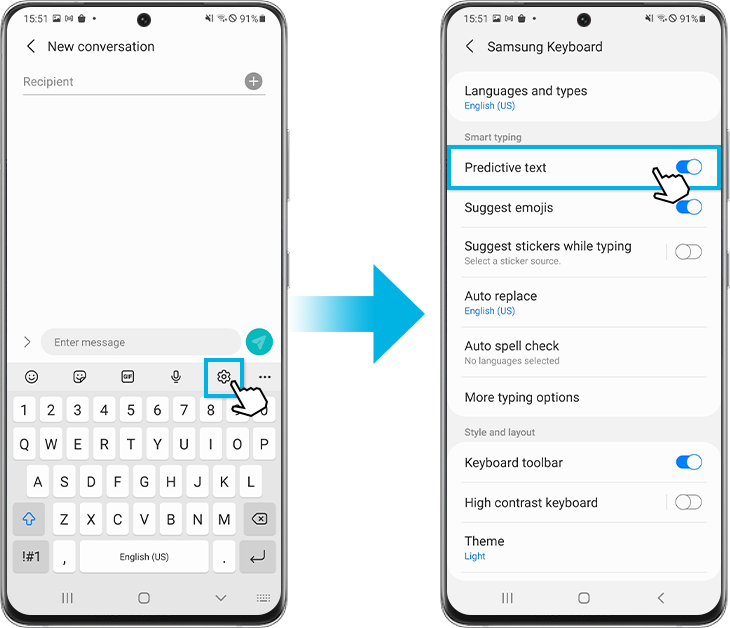
To turn predictive text on or off, follow these steps:
- Open any app that displays the Samsung keyboard, such as a messaging app or web browser.
- Tap the Settings icon on the keyboard.
- Toggle the switch next to Predictive text to turn it on or off.
You can also access predictive text settings through your device's main settings menu:
- Go to Settings.
- Tap General management.
- Select Samsung keyboard settings.
- Toggle the Predictive text switch.
2. Why Does Predictive Text Not Work on My Samsung Galaxy?
If predictive text isn't working as expected, here are some possible reasons:
- Your device's software is outdated. Update your device to the latest version.
- Predictive text is disabled in keyboard settings. Check the toggle in the keyboard settings.
- Your keyboard language is set to a language that doesn't support predictive text. Change the keyboard language to one that supports the feature.
3. How to Customize Predictive Text with Text Shortcuts
You can add custom text shortcuts to make predictive text work better for you. Here's how:
- Open the Samsung keyboard in any app.
- Tap the Settings icon.
- Select More typing options.
- Choose Text shortcuts.
- Tap the + icon in the top-right corner.
- Enter a shortcut phrase and the expanded phrase you want it to replace.
- Tap Add to save the shortcut.
When you type the shortcut phrase, the expanded phrase will appear in blue. Tap it to insert the full text.
4. How to Remove a Word from Predictive Text Suggestions
If a word appears too often in predictive text suggestions and you want to remove it, follow these steps:
- Type the word on the Samsung keyboard so it appears in the predictive text bar.
- Tap and hold the word in the suggestion bar.
- Select Remove from the menu.
- Confirm by tapping OK.
5. Supported Samsung Galaxy Devices
Predictive text is available on most Samsung Galaxy devices, including:
Galaxy S24, Galaxy S25, Galaxy S26, Galaxy Z Fold, Galaxy Z Flip, and Galaxy A series devices.
Note: Some features may vary depending on your device model and software version.
6. Related Samsung Support Topics
Thank you for your feedback!
Please answer all questions.