How do I delete all of my personal information from my device?

How to Delete All Personal Information from My Samsung Galaxy Device
To completely remove personal information from your Samsung Galaxy device, you must back up your data, remove all accounts, and perform a factory data reset. This ensures all apps, files, and settings are erased from internal storage.
1. Why Should You Delete Personal Information Before Selling or Switching Devices?
- Protects sensitive data such as photos, messages, and login credentials.
- Prevents unauthorized access to your accounts and personal files.
- Ensures compliance with privacy regulations and Samsung's security guidelines.
2. How to Back Up Your Data Before a Factory Reset
Backing up your data ensures you can restore important files on a new device.
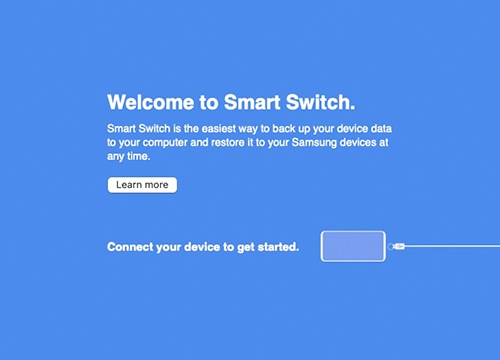
- Download and install Smart Switch on your PC from the official Samsung website.
- Connect your Samsung Galaxy device to the PC using a USB cable.
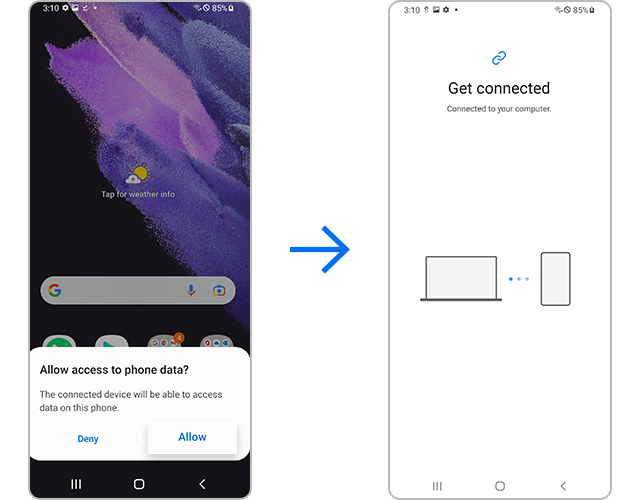
- Tap Allow on your device when prompted for USB debugging or file transfer permissions.
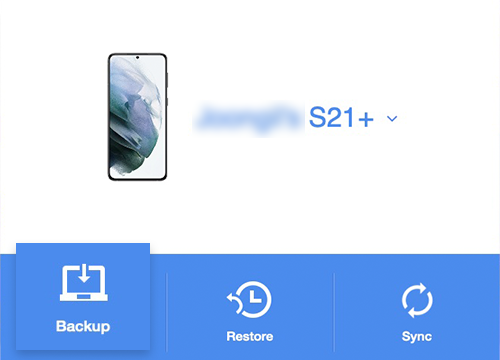
- Open Smart Switch on your PC and select Backup.
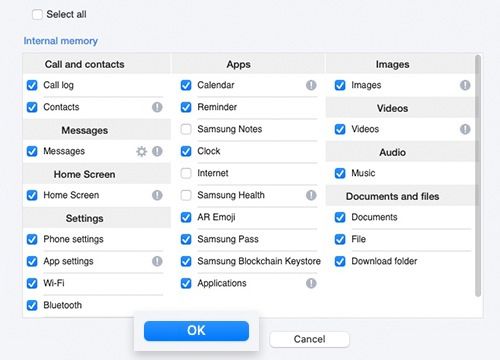
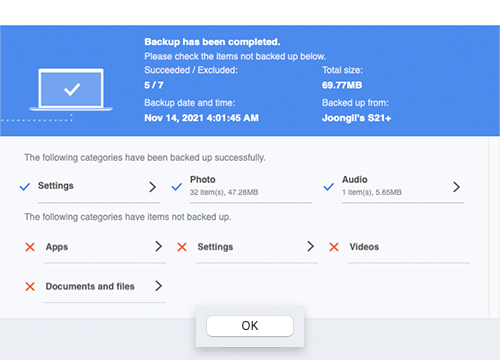
- Wait for the backup process to complete. This may take several minutes depending on the amount of data.
- Click OK once the backup is finished.
- Note: Some items like Secure Folder or hidden files may not be backed up automatically.
3. How to Remove a Google Account from Your Samsung Galaxy Device
Removing all Google accounts prevents Factory Reset Protection (FRP) lock issues after resetting your device.
- Go to Settings on your device.
- Select Accounts and Backup.
- Tap Account Management.
- Choose the Google account you want to remove.
- Tap Remove Account and confirm the action.
- Repeat these steps for all Google accounts linked to the device.
4. How to Perform a Factory Data Reset on Your Samsung Galaxy Device
A factory data reset deletes all apps, files, and settings from your device's internal storage.
- Go to Settings on your device.
- Select General Management.
- Tap Reset.
- Choose Factory Data Reset.
- Tap Delete All to confirm the reset process.
- Enter your PIN, password, or pattern when prompted for security verification.
- Wait for the reset to complete. Your device will restart automatically.
- Data stored on an SD card is not deleted during a factory reset. Remove or format the SD card separately.
- Factory Reset Protection (FRP) may require your Google account credentials after reset. Ensure you remember your account details before proceeding.
5. Additional Things to Check Before Selling or Switching Devices
- Unlink any Samsung accounts from the device under Settings > Accounts and Backup > Samsung Account.
- Disable biometric authentication methods like fingerprint or facial recognition in Settings > Biometrics and Security.
- Remove SIM cards and external storage (SD cards) before handing over the device.
6. Supported Samsung Galaxy Devices
This guide applies to most Samsung Galaxy devices, including:
Galaxy S24, Galaxy S25, Galaxy S26, Galaxy Z Fold, Galaxy Z Flip, and Galaxy A series devices.
7. Related Samsung Support Topics



Thank you for your feedback!
Please answer all questions.