How to set up Call settings on Android phone

How to customize call settings on Samsung Galaxy phones
Customizing call settings on your Samsung Galaxy phone allows you to control how calls are handled, blocked, and displayed. Whether you want to block unknown numbers, change ringtones, or adjust call display styles, these settings can be tailored to your preferences. Follow the steps below to configure call settings on your device.
1. Blocking unknown or hidden numbers
To block unknown or hidden numbers on your Samsung Galaxy phone:
- Open the Phone app.
- Tap More options (three dots) > Settings.
- Select Block numbers.
- Turn on Block unknown/hidden numbers.
- Add specific numbers to the block list if needed.
- Blocking unknown/hidden numbers helps prevent spam or unwanted calls.
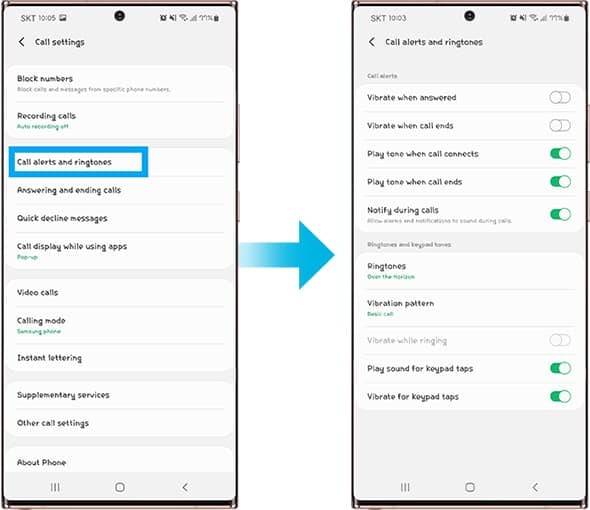
2. Customizing call alerts and ringtones
To adjust call alerts and ringtones:
- Open the Phone app.
- Tap More options > Settings.
- Select Call alerts and ringtones.
- Choose your preferred ringtone, vibration pattern, and keypad tones.
- Personalizing ringtones and alerts enhances your calling experience.
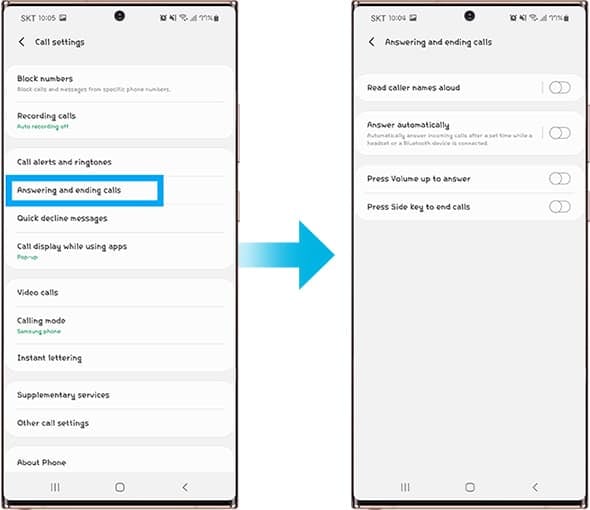
3. Managing answering and ending calls
To configure answering and ending call options:
- Open the Phone app.
- Tap More options > Settings.
- Select Answering and ending calls.
- Choose your preferred call handling options, such as swipe gestures or voice commands.
- Adjusting call handling options ensures smoother call management.
4. Setting up quick decline messages
To customize quick decline messages:
- Open the Phone app.
- Tap More options > Settings.
- Select Quick decline messages.
- Edit or create custom rejection messages for declined calls.
- Quick decline messages allow you to politely reject calls without speaking.
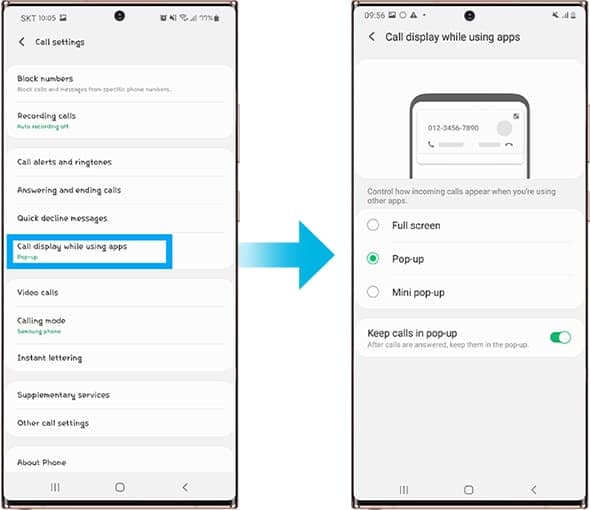
5. Configuring call display while using apps
To adjust call display settings:
- Open the Phone app.
- Tap More options > Settings.
- Select Call display while using apps.
- Choose a display style: Full screen, Pop-up, or Mini pop-up.
- Enable Keep calls in pop-up if needed.
- Customizing call display helps you stay connected while multitasking.
Supported Samsung Galaxy devices
These call settings are available on most Samsung Galaxy devices, including the Galaxy S24, Galaxy S25, Galaxy S26, Galaxy Z Fold, Galaxy Z Flip, and Galaxy A series. However, some features may vary depending on your device model, software version, and carrier.
Additional things to check
- Ensure your device is running the latest software version for optimal functionality.
- Some call settings may require carrier-specific configurations.
Related Samsung support topics



Thank you for your feedback!
Please answer all questions.