what is samsung flow and how to use it?
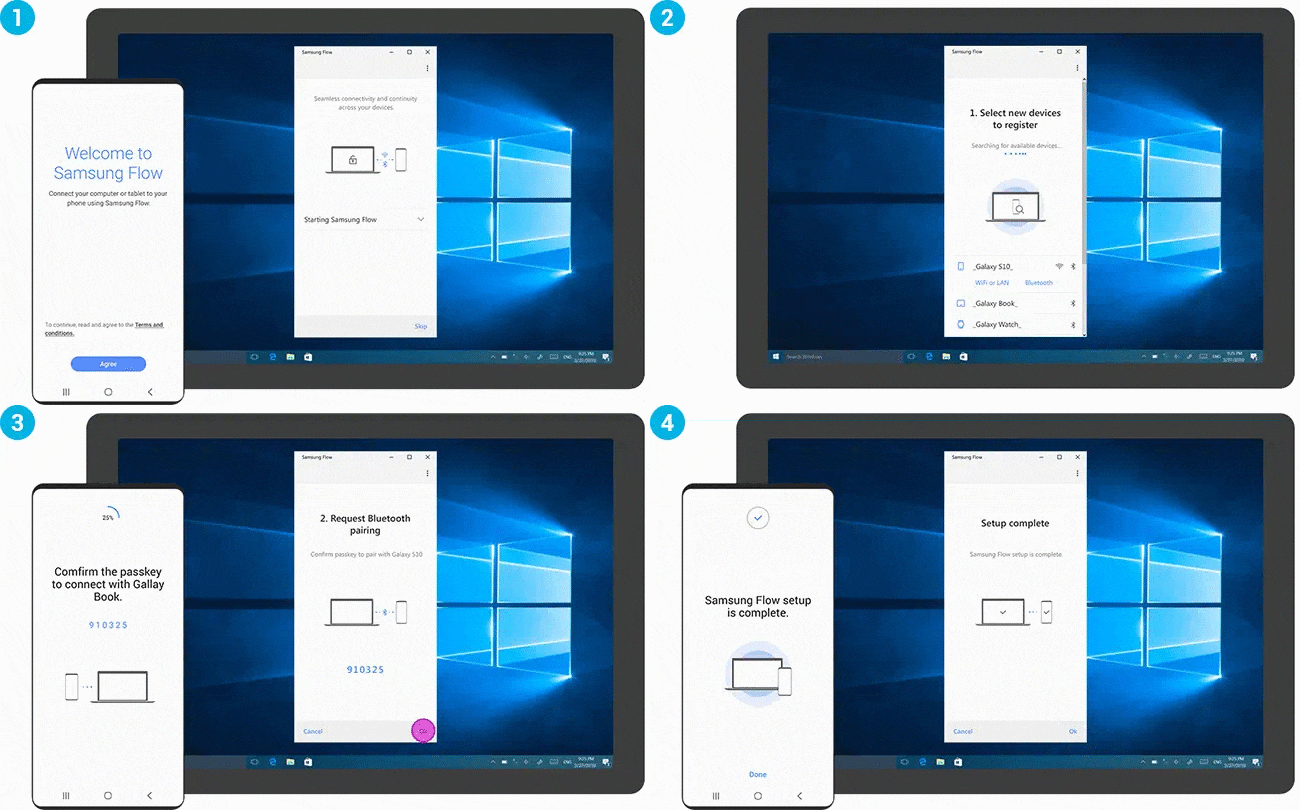
Samsung Flow is a connectivity feature that links your Samsung Galaxy phone to a compatible PC or tablet, allowing you to share files, mirror your phone's screen, sync notifications, and more. To use Samsung Flow effectively, ensure your devices meet compatibility requirements and follow the setup steps below.
1. What is Samsung Flow and how does it work?
Samsung Flow is a cross-device connectivity tool designed to enhance productivity by linking your Samsung Galaxy phone with a PC or tablet. It enables features like screen mirroring, notification syncing, secure access, and file sharing. This service is ideal for users who frequently switch between devices or need a larger screen for tasks.
2. Supported Samsung Galaxy devices
Samsung Flow is compatible with a range of Samsung Galaxy devices, including:
- Galaxy S24, Galaxy S25, Galaxy S26 series
- Galaxy Z Fold and Galaxy Z Flip series
- Galaxy A series (select models)
Ensure your phone runs Android OS version 6.0 (Marshmallow) or later, and your PC uses Windows 10 or later.
3. How to set up Samsung Flow
- Update your phone's software to the latest version via Settings > Software Update > Download and Install.
- Install the Samsung Flow app on your phone and PC/tablet from the respective app stores.
- Open Samsung Flow on both devices and select your phone from the list of available devices on the PC/tablet.
- Confirm the passcode displayed on both devices to establish the connection.
4. Key features of Samsung Flow
- Secure Access: Unlock your PC or tablet using your Galaxy phone's biometric authentication (e.g., fingerprint or face recognition).
- Smart View: Mirror your phone's screen onto a PC or tablet for a larger display.
- Handover: Transfer ongoing activities (e.g., browsing or messaging) between devices.
- Notification Sync: View and reply to phone notifications directly from your PC or tablet.
- Auto Hotspot Link: Quickly enable your phone's mobile hotspot for internet sharing.
5. How to manage notifications in Samsung Flow
- Open the Samsung Flow app on your phone.
- Tap More Options (three vertical dots) > Settings > Manage Notifications.
- Toggle the switch next to the apps whose notifications you want to sync to your PC or tablet.
Note: Non-messenger app notifications will still require interaction on your phone.
6. How to mirror your phone's screen using Smart View
- Ensure your phone and PC/tablet are paired via Samsung Flow.
- On your PC or tablet, open Samsung Flow and tap the Smart View icon.
- Your phone's screen will appear in a second window on the larger device.
While using Smart View, you can:
- Minimize notifications for fewer distractions.
- Rotate the screen orientation (landscape or portrait).
- Switch to full-screen mode.
- Turn your phone's screen on or off.
- Capture a screenshot of your phone's screen.
- Adjust the screen resolution.
- Add up to 8 favorite apps for quick access.
7. Troubleshooting Samsung Flow issues
- If your phone doesn't appear in the device list, ensure Samsung Flow is installed and updated on both devices.
- Check for software updates on your phone and PC/tablet.
- Restart both devices if the connection fails.
- Ensure both devices are within Bluetooth range during setup.
8. Related Samsung support topics
Thank you for your feedback!
Please answer all questions.