How to add apps and widgets on your Galaxy phone's Home screen
Adding apps and widgets to your Samsung Galaxy phone's Home screen helps you personalize your device for quick access to frequently used features. Whether you're using a Galaxy S24, Galaxy Z Fold, or Galaxy A series, this guide covers everything you need to know about managing your Home screen layout.
1. How to Add and Remove Apps on the Home Screen
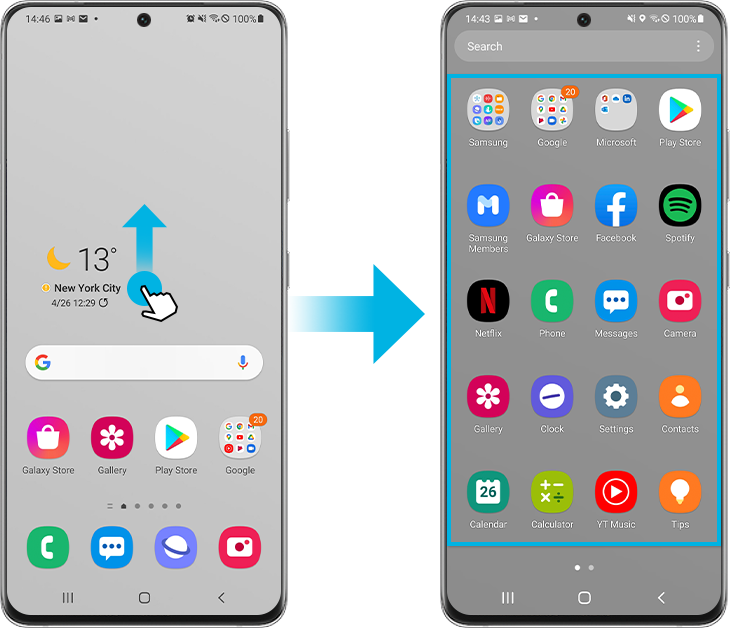
Your Samsung Galaxy phone includes both a Home screen and an App screen. While the Home screen displays your most-used apps, the App screen shows all installed apps. Here's how to add or remove apps on the Home screen:
- Access the App screen by swiping up from the Home screen.
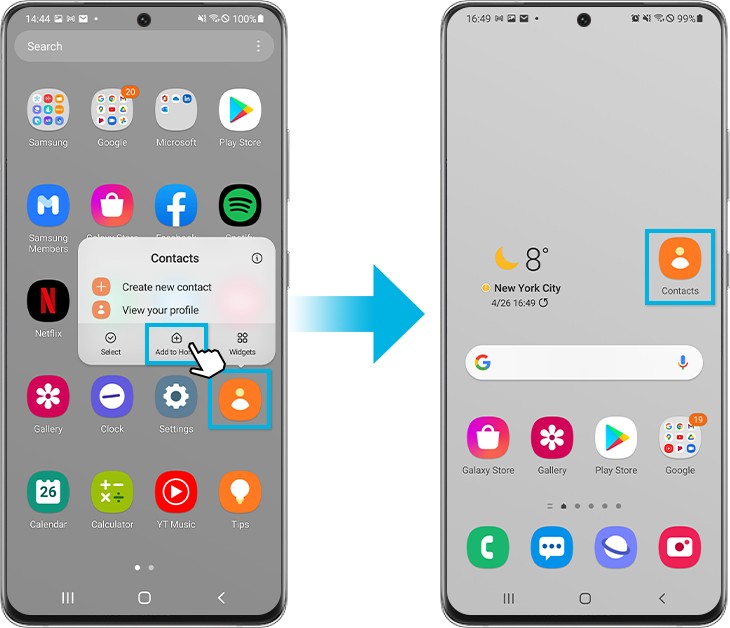
- Tap and hold the app icon you want to add to the Home screen.
- Select Add to Home from the menu.
- The app icon will now appear on your Home screen.
- To move an app icon, tap and hold it, drag it to the desired location, and release.
- To remove an app icon from the Home screen, tap and hold it, then select Remove. The app will remain accessible on the App screen.
Note: If you hide an app on the App screen, it won't appear on either screen. To hide apps, go to Settings > Home screen > Hide apps.
2. How to Add and Remove Widgets on the Home Screen
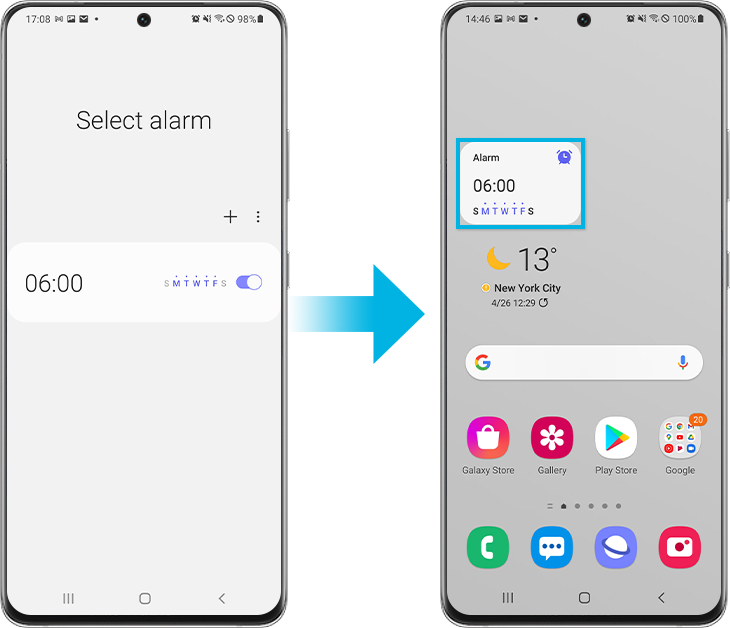
Widgets provide quick access to app functions without opening the app itself. Here's how to add or remove widgets on your Home screen:
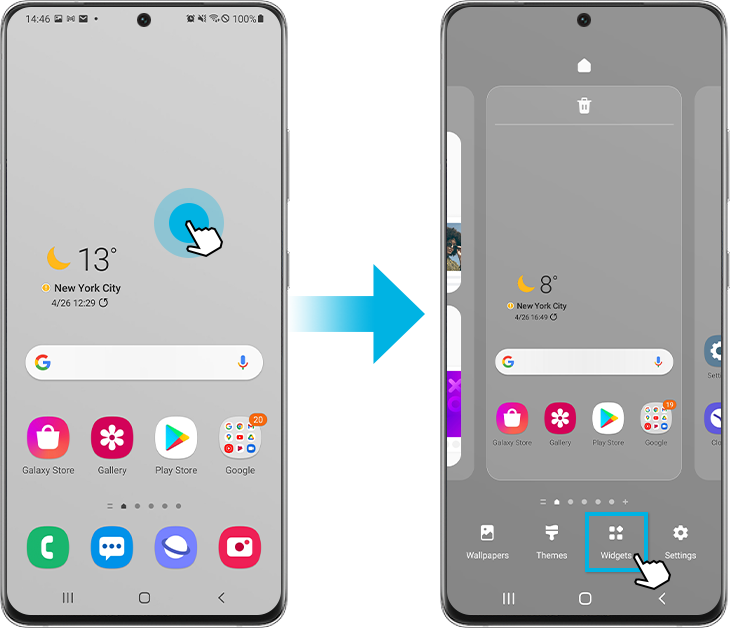
- Tap and hold an empty area on the Home screen.
- Select Widgets from the menu.
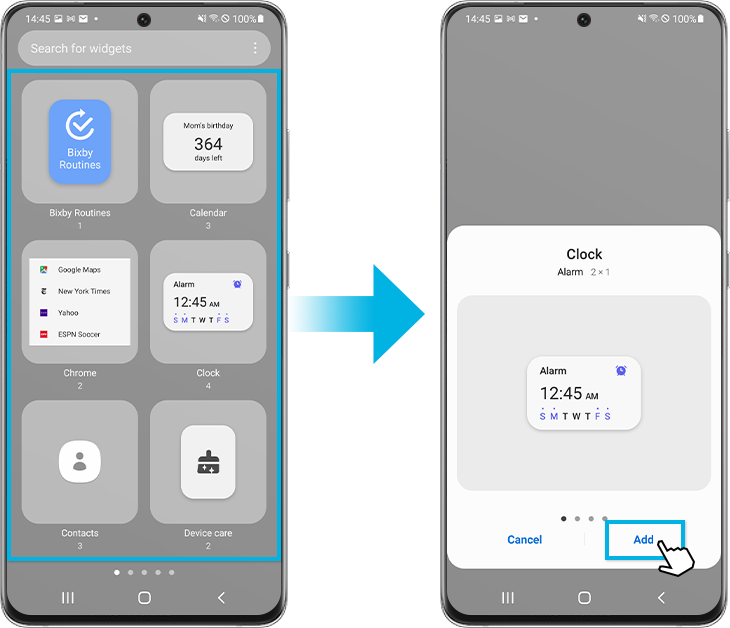
- Choose the widget you want to add, such as the Clock widget.
- Select the widget type and tap Add.
- Adjust any additional settings as needed.
- The widget will now appear on your Home screen.
- To move a widget, tap and hold it, drag it to the desired location, and release.
- To remove a widget, tap and hold it, then select Remove. This won't affect the app settings.
You can also customize widgets further:
- Resize: Widgets with adjustable size will show blue lines along their edges. Drag the lines to resize.
- Color: Change the widget's color by tapping and holding it, then selecting Settings.
- Transparency: Adjust the widget's transparency in the same Settings menu.
3. How to Lock Your Home Screen Layout
To prevent accidental changes to your Home screen, you can lock the layout. Here's how:
- Go to Home screen settings.
- Toggle the Lock Home screen layout feature on or off.
Note: You can also access this setting under Settings > Display > Home screen.
4. Supported Samsung Galaxy Devices
These instructions apply to most Samsung Galaxy devices, including the Galaxy S24, Galaxy S25, Galaxy Z Fold, Galaxy Z Flip, and Galaxy A series. However, menu layouts may vary slightly depending on your device model and software version.
5. Related Samsung Support Topics
Thank you for your feedback!
Please answer all questions.