Solving problems related to Smart View
Why is Samsung Galaxy Smart View not working?
If your Samsung Galaxy Smart View isn't connecting to your TV, the screen appears distorted, or content doesn't play properly, follow these steps to resolve common issues related to network connectivity, software updates, and device settings.
1. What is Smart View?
Smart View is a wireless screen mirroring feature that allows you to display your Samsung Galaxy phone's screen on a compatible TV or monitor using Wi-Fi. It supports streaming photos, videos, games, and presentations on a larger display. This feature works seamlessly across Samsung Galaxy devices and Samsung Smart TVs.
2. Why is my Samsung Galaxy Smart View not working?
Common issues with Smart View include connection failures, black screens, distorted images, or content not appearing on the TV. These problems often stem from network misconfigurations, outdated software, or incorrect device settings. Below are detailed troubleshooting steps to resolve these issues.
3. How do I check if my Samsung Galaxy and TV are on the same Wi-Fi network?
Ensure both your phone and TV are connected to the same Wi-Fi network for Smart View to work properly. Follow these steps:
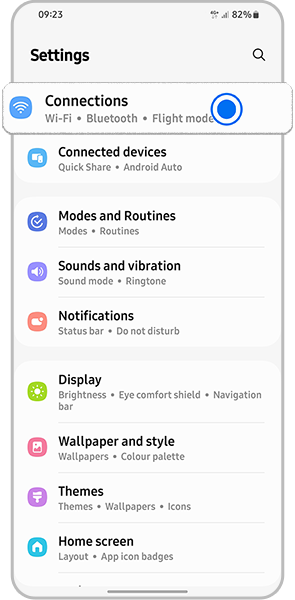
- Open Settings on your Samsung Galaxy device.
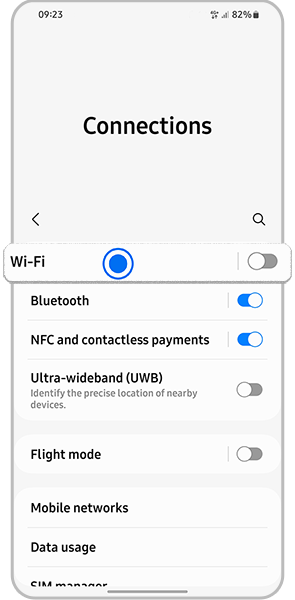
- Select Connections or Network settings.
- Choose Wi-Fi and verify that both your phone and TV are connected to the same network.
4. How do I connect my Samsung Galaxy to my TV using Smart View?
To establish a connection between your phone and TV, follow these steps:
- Open the Smart View app or swipe down the notification panel and tap the Smart View icon.
- Select your TV from the list of available devices.
- If prompted, allow the connection on your TV by selecting "Allow" on the TV's interface.
5. How do I update my Samsung Smart TV's software?
Outdated TV software can cause Smart View compatibility issues. Update your TV's software using these steps:
- Go to Settings on your Samsung Smart TV.
- Select Support or General, depending on your TV model.
- Choose Software Update and select Update Now.
- Wait for the update to complete and restart your TV automatically.
- Do not turn off your TV during the update process.
6. How do I fix a distorted or small image on my TV using Smart View?
If the image appears too small or distorted, adjust the aspect ratio:
- Tap the Smart View icon on your phone.
- Select Set Aspect Ratio and choose the appropriate setting for your TV.
7. What should I do if Smart View shows content on my phone but not on the TV?
This issue can occur due to DRM (Digital Rights Management) restrictions or incorrect graphics settings. Try these steps:
- Restart your Samsung Galaxy device.
- Reconnect to Smart View and attempt to mirror the content again.
- DRM protects copyrighted digital media and may restrict playback on certain devices.
8. What if Smart View still doesn't work?
If the issue persists, consider the following:
- Reboot your Wi-Fi router to ensure a stable connection.
- Check for firmware updates for your router.
- Ensure your Samsung Galaxy device and TV support Smart View functionality.
9. Supported Samsung Galaxy devices
Smart View is compatible with most Samsung Galaxy devices, including the Galaxy S24, Galaxy S25, Galaxy S26, Galaxy Z Fold, Galaxy Z Flip, and Galaxy A series. Ensure your device runs the latest software version for optimal performance.
10. Related Samsung support topics
Thank you for your feedback!
Please answer all questions.