
65" OLED S90F 4K Samsung Vision AI Smart TV (2025)


Gallery popup


Scan this QR code with your phone and place the object in your space.
{{upgradeResult.displayModelName}}
{{upgradeResult.discountText1}}
{{upgradeResult.description1}}
{{upgradeResult.description2}}
{{offerFinance.title}}
{{offerFinance.learnMoreCta.text}}{{offerFinance.description}}
{{galaxyForeverResult.displayModelName}}
{{galaxyForeverResult.discountText1}}
{{galaxyForeverResult.description1}}
{{galaxyForeverResult.description2}}
Choose your color
Customizable bezels sold separately
Choose your skin color
Customizable skin sold separately
-
{{item.name}}
Out Of Stock
Modern Type
-
{{item.name}}
Out Of Stock
Beveled Type
-
{{item.name}}
Out Of Stock
Skin color
-
{{item.name}}
Out Of Stock
Bezel type

- Modern Type
The Frame's custom bezels magnetically click into place. Now, you can switch between styles in a snap.
Bezel type

- Beveled Type
The new Beveled type bezel design offers an elegant 45-degree angled inner edge bezel.
{{tradeIn.title}}
{{tradeIn.learnMoreCta.text}}{{tradeIn.description}}
Congratulations, your trade-in will be added to your order.
-
{{item.discountPriceTextTile}} {{item.discountPriceText}} {{item.discountText1}} {{item.abondementAmountText}} {{item.spotGuaranteeAmountText}} {{item.tradeinValueText}} {{item.exclusiveTradeinUnitOfferText}} {{item.extraTradeinOfferText}} {{item.exclusiveChannerTradeinOfferText}} {{item.extraTradeinVoucherText}} {{item.specialDiscountText}}
{{item.displayModelName}}
Values will vary based on model and condition of your old device. T&Cs apply.
Dealer stock quantity
You can check the stock quantity for each region
Please select city
{{assuredBuyBack.title}}
{{newAssuredBuyBack.title}}
{{newAssuredBuyBack.learnMoreCta.text}}{{newAssuredBuyBack.description}}
Please select Samsung Assured Buyback or no coverage
{{care.title}}
{{care.learnMoreCta.text}}{{care.description}}
Please select Samsung Care+ or No to continue
-
{{item.specialText}}
-
{{warranty.title}}
{{warranty.description}}
{{warrantyResult.displayModelName}}
{{warrantyResult.discountText1}}
{{warrantyResult.description1}}
{{warrantyVd.title}}
{{warrantyVd.description}}
{{warrantyVdResult.title}}
{{warrantyVdResult.priceDisplay}}
{{delivery.headline}}
{{delivery.errorMessage}}
{{deliveryResult.priorityText}}
{{deliveryResult.mainText}}
{{deliveryResult.subText}}
Standard installation charges may apply.Click here for more details.
{{deliveryResult.decText}}
{{item.disclaimer}}
{{tariffOptionResult.displayModelName}}
{{tariffOptionResult.discountText1}}
{{tariffOptionResult.description1}}
{{tariffOptionResult.description2}}
{{tariffOptionResult.description}}
{{tariffOptionResult.price}}
{{tariffOptionResult.disclaimer}}
{{embedAddon.title}}
{{embedAddon.description}}
-
{{item.name}}
{{item.modelCode}}
{{item.description}}
{{item.finalPrice}}
{{item.originalPrice}}{{item.savePrice}} Out Of Stock
-
{{item.name}}
{{item.modelCode}}
{{item.description}}
- {{item.dotList1}}
- {{item.dotList2}}
- {{item.dotList3}}
{{item.finalPrice}}
{{item.originalPrice}}{{item.savePrice}} Out Of Stock
{{message.item.tcCTAText}}
{{message.item.periodText}}
Highlights

NQ4 AI Gen3 Processor
Our most advanced AI-powered 4K processor

4K AI Upscaling Pro
Boost shows and movies to 4K resolution

OLED HDR+
Powerful brightness and deeper contrast

G-Sync Compatible
Ultra-smooth, ultra fast responsive gameplay

20 Years Global No.1 TV
20 years of innovation, 20 years of excitement. *Source: Omdia, Feb-2026. Results are not an endorsement of Samsung

[T3] Platium Award
“Samsung's S90F is an OLED TV treat every bit worthy of its 5 star score”

[TechRadar] Recommends
"A big QD-OLED value”
Features
Enrich your experience with Samsung Vision AI


Key features at a glance


Companion that enriches your life


A smarter voice assistant
Bixby
With updated intelligence, Bixby in your Samsung AI TV is the perfect center of your AI home. It can process multiple commands at once, and it's better at grasping the wider context. Enjoy smoother conversations, easier searches, more intuitive reactions and seamless device control.
* Voice commands and multi turn is supported for 10 languages (US/UK/IN(en)/DE/FR/IT/ES/BR/MX/KR).** Not all accents, dialects and expressions recognized.* Q8F and above support far-field mics. Q7F and above support TV remotes. U8000F needs a SmartThings mobile remote.


Settings that intelligently optimize picture and sound
AI Mode
AI Mode offers a quick-access menu to adjust adaptive picture and sound settings, intelligently optimizing your TV experience to your surroundings and the content you're watching.


Sound optimized and remastered to your content and space
Adaptive Sound Pro
Listen to sound just as the creators intended, with clear voices and vivid, balanced tones. Your TV's AI processor recognizes different sounds — like dialogue and background music — and optimizes them for their type and your room's acoustics, before ultimately refining them with audio remastering technology.
* Experience may vary depending on the content and environment.

Stay connected to your pets while you're away
Pet Care
Use your TV as a pet-sitting assistant when you're outside. Your TV can detect noises like barking through its microphone, and then automatically turn on your pet's favorite content to calm them down.
* Real-time streaming on mobile devices is supported on Android OS 11.0 and higher versions or iOS 16.0 and higher versions, and is available on 2025 Samsung TVs and later models. It only works when the TV is turned off.** TV must be connected to a power source to use this feature.
*** TV and mobile device must be connected to SmartThings to send and receive notifications.
Our most advanced AI-powered 4K processor
NQ4 AI Gen3 Processor
Powered by 128 AI neural networks, this AI processor enhances your picture and sound to superb heights. Enjoy the best 4K TV experience, whether you're streaming OTT services, playing your favorite video games or watching live sports.


** Upscaling may not apply to PC connection and Game Mode.
Boost shows and movies to 4K resolution
4K AI Upscaling Pro
Watch your favorite content in more brilliant detail. Our AI processor can take your content and enhance it up to 4K resolution with 128 AI neural networks — all while maintaining incredibly sharp and smooth picture quality.


** 4K AI Upscaling may not apply to PC connection and Game Mode.
Picture Quality


Powerful brightness and deeper contrast
OLED HDR+
Our processor analyzes each scene and boosts for improved brightness. The result is an incredibly bright screen with a deeper range of contrast, which makes even minor details stand out.


* The range of HDR luminance is based on internal testing standards and is subject to change according to viewing conditions or specifications.
More about
Picture Quality


Deep blacks, clean whites and lively colors
OLED
Samsung’s unique OLED expresses deep blacks, clean whites and a full range of lively colors. With cutting-edge self-illuminating pixels, what you see is a picture that's pure, bright and more accurate than ever before.


Depth perceived just as a person’s eyes would
Real Depth Enhancer
Watch the figures on screen stand out with more realism. Real Depth Enhancer increases the contrast between the objects in the foreground from the background — mirroring how a human eye processes depth. So when you're watching a nature documentary, it really looks like the rhinos are marching toward you.


Enjoy a full range of authentic colors
PANTONE Validated
As a trusted symbol of color fidelity by industry experts, ‘PANTONE Validated' certifies the accurate expression of 2,140 PANTONE colors and 110 newly-added skin tone shades. So you can be sure that you're getting a rich, true-to-life viewing experience.
* PANTONE validation received based on HDR screen.

Easily spot moving objects and text
AI Motion Enhancer Pro
Our AI processor smooths out and sharpens motion, so you can see moving objects and text far more clearly. Watching live sports and fast-paced action has never been easier.
* Viewing experience may vary according to types of content and format.

Intelligently refines content to HDR-like quality with AI
Auto HDR Remastering Pro
Enjoy brighter highlights, clearer details and more vibrant colors. Our AI technology learns the differences between SDR and HDR content. Then it converts SDR content into brilliant HDR-like quality.


Catch hidden details in dark scenes
HDR Brightness Optimizer
When there's bright daylight or ambient light in the room, our processor responds by enhancing visibility in dark scenes. That way, you can always enjoy clear, vivid HDR imagery with all the little details.
Gaming Experience


Unbeatable high performance for the gamer
Ultimate Gaming Pack
Unlock the ultimate gaming experience with Motion Xcelerator, AMD FreeSync and NVIDIA G-Sync. These advanced technologies provide ultra-smooth, tear-free, low-latency gameplay with real-time responsiveness for an immersive experience.


Get smooth motion for games up to 144Hz
Motion Xcelerator 144Hz
Enjoy seamless visuals at incredibly fast speeds. Samsung’s unique dynamic refresh technology provides smooth motion performance for VRR games up to 4K 144Hz.
* 4K 144Hz is only available with PC connected games that support such specifications (PC graphic card required).
** Performance may vary.


* 4K 144Hz is only available with PC connected games that support such specifications (PC graphic card required).
** Performance may vary.


FreeSync Premium Pro
Built on AMD FreeSync™ core technology to reduce stutter and screen tearing, FreeSync Premium Pro provides a true HDR gaming experience. It produces exceptional high dynamic range visuals while maintaining low latency for effortlessly smooth gameplay.


G-Sync Compatible
Stay ahead of the action with sharp, precise movements. Validated by NVIDIA, G-Sync technology reduces screen tearing and stuttering to provide smooth gaming and enhanced immersion.
More about
Gaming Experience


Fine-tune your game settings as you play
Game Bar
Optimize your gameplay even more with Game Bar. Samsung TVs give you a handy in-game menu for settings like FPS, input lag, minimap zoom and more. It also lets you apply ultra-wide aspect ratios of 21:9 and 32:9 to expand your view on bigger screens.
* Super Ultrawide GameView (21:9, 32:9) is available for certain PC games.** Some game titles may not support this feature.
*** Game Bar's Zoom-in mode is not supported for certain refresh rates.
**** Game Bar UI is subject to change without prior notice.


Faster, smoother low input lag gameplay
Auto Low Latency Mode (ALLM)
Auto Low Latency Mode sets optimal latency settings for your games automatically, allowing for smooth gaming and fast reactions to your commands.
* Low input lag is measured based on internal testing conditions and it is subject to change according to game settings or specific conditions.

Seamless AI-driven game optimization
AI Auto Game Mode
Let your TV detect the type of game you're playing and optimize the settings. You can free yourself from the usual setup hassle and just play.
* AI Auto Game Mode is available for certain console and PC games.

Immersive lighting that syncs with your game
Hue Sync
Create a dynamic atmosphere with smart lights that sync to your content. Samsung TVs can analyze the colors and movements on screen, then signal to Hue lights for matching effect — resulting in an incredibly immersive viewing experience.
* Smart light sold separately.** Samsung account required. Additional installation of the Philips Hue Sync app and paid subscription are required.
Sound


TV and soundbar play together in smooth harmony
Q-Symphony
Surround yourself with beautifully orchestrated sound. Samsung technology syncs the TV and soundbar audio to play simultaneously — without muting the speakers of either device.
* Check for Q-Symphony compatibility on soundbar product specifications.** Soundbar sold separately.
*** The location and number of speakers may vary depending on the model.


A next level Dolby Atmos experience
Dolby Atmos®
Enjoy a next-level surround sound experience that immerses you deep inside the action. With Dolby Atmos, it delivers multi-dimensional audio for unbelievably realistic sound.


Immersive virtual sound that tracks the action
Object Tracking Sound Lite
3D surround sound with our virtual top channel audio allows you to be immersed in the audio experience.


Catch every word without distractions
Active Voice Amplifier Pro
Enjoy clear dialogue, no matter what's going on. Our AI technology enhances voice clarity by analyzing ambient noise and background sounds from your content.
One UI Tizen


Personalize your screen experience
One UI Tizen
One UI Tizen provides a personalized screen experience. With Samsung Tizen OS, it delivers all the latest innovative Samsung features. Your experience is also secured by Samsung Knox across SmartThings devices. Plus, One UI Tizen will support Tizen OS upgrades for the next 7 years.


Enjoy 7 years of
new TV experiences
for free


** Agreement to Smart Hub Terms and Conditions and Privacy Policy is required before use.
*** Some content and services require registration and subscription.
**** Requires Samsung account.
***** Tizen OS upgrades will be supported for up to 7 years starting from 2023.
****** Please note that the upgrade does not cover hardware-related performance, features or durability.
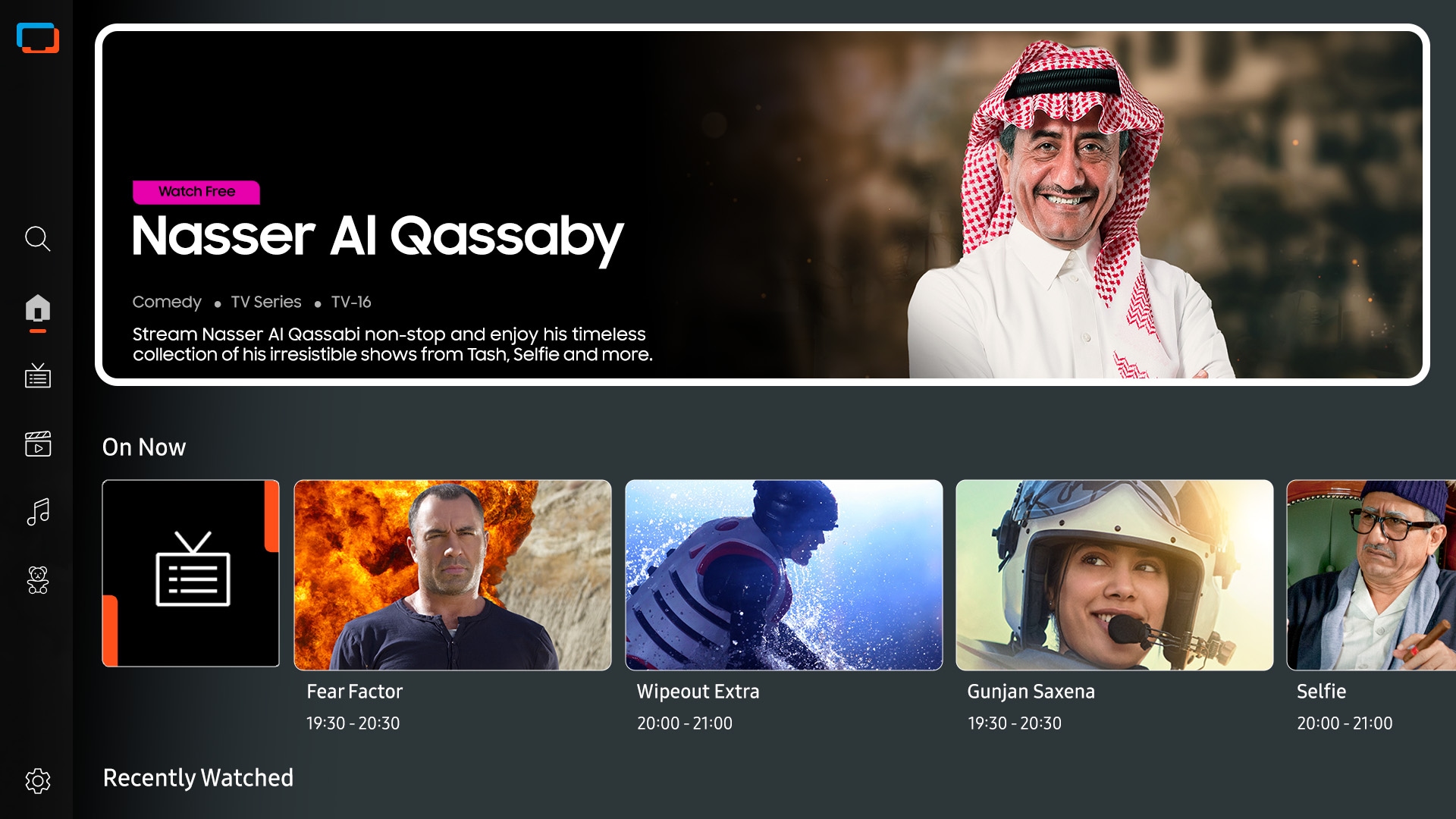
Access free channels with Samsung TV Plus
Endless Free Content
Access free channels, including Samsung TV Plus premium channels. Enjoy news, sports, movies, entertainment, music, kids’ shows and more. With new content continuously added, there’s always more to explore.


The best of TV. All for free.
Samsung TV Plus
Dive into a vast collection of shows, movies and other content on Samsung TV Plus. It comes installed for free on your TV — no payment, subscription or setup required.
* Channels may vary by country and are subject to change without notice.
** Supported Samsung devices may vary by country.
*** Requires Samsung account.
**** UI is subject to change without prior notice.
***** Ads may appear on Samsung TV Plus.
****** Available for free on Samsung Smart TVs released since 2016.

* Channels may vary by country and are subject to change without notice.
** Supported Samsung devices may vary by country.
*** Requires Samsung account.
**** UI is subject to change without prior notice.
***** Ads may appear on Samsung TV Plus.
****** Available for free on Samsung Smart TVs released since 2016.
More about
One UI Tizen


Access useful info even when your TV is off
Daily Board
Have useful widgets appear on your TV throughout the day. Even when your screen is off, your TV can detect when users come nearby and activate to display Daily Board. You can customize it with widgets like Weather, Memo, Music and more. Daily Board can also be activated hands-free by voice command.
* Supported widgets vary by region and are subject to change without notice.

Your privacy. Secured.
Samsung Knox Security
Your privacy is secure on Samsung TVs. Sensitive data like passwords are protected, connected IoT devices are monitored and malicious apps and sites are automatically blocked. Plus, Samsung's security team helps keep your TV safe with constant updates.
* Samsung Knox Security applies to Samsung TVs powered by Tizen®, launched since 2015.** Latest software update is required.
SmartThings


Connect and manage your smart home devices, all from your TV
SmartThings
With a built-in smart hub, your TV can connect and control smart devices — even those requiring Matter and HCA compatibility. You can also get notifications about your devices straight from the screen, including a 3D Map View that shows your entire smart home system at a glance.


** Requires a Wi-Fi, Bluetooth or other wireless network connection and login to Samsung account.
*** Connected devices are sold separately.
**** Use of calm technology requires agreement to privacy notices from both SmartThings and the auto-registered device.
***** TV and mobile device must be connected to SmartThings to use 3D Map View function. For a detailed list of supported devices, visit https://partners.smartthings.com/supported-devices.
****** UI is subject to change without prior notice.
More about
SmartThings


Gestures to control with your watch
Universal Gestures
Easily control your TV with your smartwatch. Just wear your Galaxy Watch and use hand gestures, like pinching to select an option, or moving your wrist back and forth for pause and play.
* Available apps and services may vary and are subject to change without notice.** Only supported on Galaxy Watch4 and later models, and Wear OS 5 and higher versions.


Save energy with intelligent analysis
AI Energy Mode
Energy saving made easy with SmartThings. By turning on AI Energy Mode, it auto detects surrounding light levels and analyzes usage behaviors to adjust the brightness. Also, it analyzes the content scene-by-scene to subtly adjust brightness where possible, to manage energy consumption.
* Energy saving rate may vary by region, model, size, viewing conditions and type of content.** Products shipped in Eco Mode have some AI Energy Mode functions enabled by default, so energy saving levels when AI Energy Mode is turned on may appear lower compared to Standard Mode.
*** AI Energy Mode does not work with Game Mode.
**** Energy savings are based on internal test results and may vary depending on the content being displayed and surrounding brightness levels.


Control your TV from your phone
Quick Remote
Through your mobile device, you can access key Samsung Tizen TV features such as media, features and menu. Quick Remote can also act as your TV remote, allowing you to change channels, adjust the volume and more right from your phone.
* Push notifications for mobile remotes for TVs are available on (Mobile) Android OS 10.0 and higher versions with (TV) 2020 Samsung TVs and later models, and operates when the mobile device is near the TV.** Samsung Smart TV feature access is available on (TV) 2024 Samsung TVs and later models with (Mobile) Android OS 10.0 and higher versions or iOS 15.0 and higher versions.


Spatial 3D sound with Galaxy Buds
360 Audio Mode
Immerse yourself in the scene with fluid sound from all around. Samsung TVs pair seamlessly with Galaxy Buds to deliver multi-directional 3D audio. With enhanced head tracking, it even syncs the direction of sound with your head movements.
* Galaxy Buds 360 Audio Mode is available with Galaxy Buds2 Pro, Galaxy Buds2, Galaxy Buds Pro and Galaxy Live.

Transform your TV into a karaoke stage
Karaoke
Have fun with friends and family with the karaoke feature. You can even connect your phone to use as a mic. No need for any separate equipment — your singing setup is already here.
* Requires SmartThings app to be installed on the mobile device and connected via the same Wi-Fi network as the TV set.** Mobile mic is optimized only for Galaxy S23 or later models and iPhone 15 & above.
*** You must download the Karaoke app from Tizen to use the Karaoke function.
**** An additional paid subscription is required for this service after 6 months of free use. (Users can access 5 songs per day for free without a subscription.)
Design


A sleek design that complements any space
LaserSlim Design
OLED’s sleek and stylish design combines unique beauty with strong functionality. Featuring a groundbreaking slim form factor and minimalistic bezel, your TV blends seamlessly into any interior.


Sustainability


Charge it with light
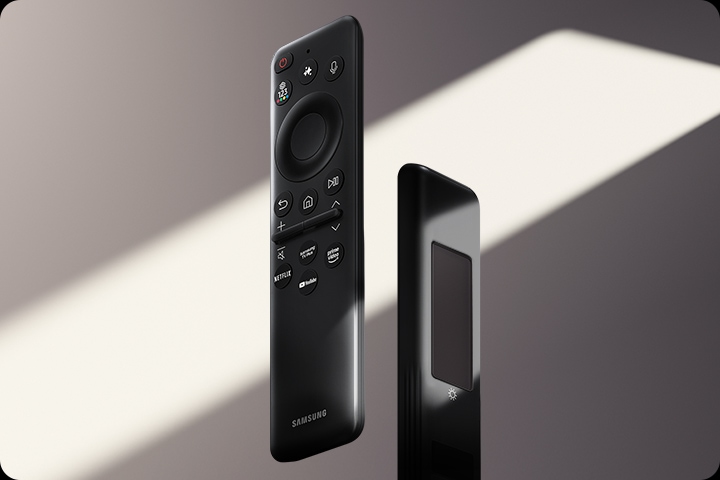
SolarCell Remote
With a solar panel on its back, our SolarCell Remote is charged by light — no need for disposable batteries. And with smart features like a built-in microphone and voice assistant, this remote is innovative in more ways than one.
* To charge the remote with solar energy, set the TV remote down with the solar panel facing up. Place it in your living room while your lights are turned on, or you can place it near a window where it will soak in natural sunlight.
** In case the remote's battery is depleted, you can charge it using a USB-C cable. To check the remaining battery level of the remote control, refer to the TV Menu (Settings > General & Privacy > Power & Energy Saving > Available Remote Battery).

* To charge the remote with solar energy, set the TV remote down with the solar panel facing up. Place it in your living room while your lights are turned on, or you can place it near a window where it will soak in natural sunlight.
** In case the remote's battery is depleted, you can charge it using a USB-C cable. To check the remaining battery level of the remote control, refer to the TV Menu (Settings > General & Privacy > Power & Energy Saving > Available Remote Battery).
Specifications
-
OLED
-
Screen Size
65"
-
Resolution
4K (3,840 x 2,160)
-
Refresh Rate
100Hz (Up to 144Hz)
-
Anti Reflection
Yes
-
Picture Engine
NQ4 AI Gen3 Processor
-
HDR (High Dynamic Range)
OLED HDR+
-
HDR 10+
Yes (ADAPTIVE/ GAMING)
-
Contrast
Self-illuminating pixels
-
Viewing Angle
Ultra Viewing Angle
-
Contrast Enhancer
Real Depth Enhancer
-
Motion Technology
Motion Xcelerator 144Hz
-
Smart Calibration
Basic
-
AI Picture
AI Optimized/AI Customization
-
AI Upscale
4K AI Upscaling Pro
-
AI Motion Enhancer
AI Motion Enhancer Pro
-
HDR Brightness Optimizer
Yes
-
Filmmaker Mode (FMM)
Yes
-
Color Booster
Color Booster Pro
-
AI HDR Remastering
Auto HDR Remastering pro
-
EyeComfort Mode
Yes
-
Dolby Atmos
Yes
-
Object Tracking Sound
OTS Lite
-
Q-Symphony
Yes
-
Sound Output (RMS)
40W
-
Speaker Type
2.1CH
-
Active Voice Amplifier
Yes (Active Voice Amplifier Pro)
-
Adaptive Sound
Yes (Adaptive Sound Pro)
-
360 Audio
Yes
-
Operating System
Tizen™ Smart TV
-
Bixby
Yes
-
Far-Field Voice Interaction
Yes
-
Samsung TV Plus
Yes (SA,AE,EG only)(SA,AE,EG only)
-
Web Browser
Yes
-
SmartThings Hub / Matter Hub / IoT-Sensor Functionality / Quick Remote
Yes
-
Multi Device Experience
TV to Mobile, Mobile to TV, TV initiate mirroring, Sound Mirroring, Wireless TV On, Tap View
-
Multi-View
upto 2 videos
-
Apple AirPlay
Yes (w/o Syrian Arab Republic, Yemen)
-
Storage Share
Yes
-
Karaoke Mic
Yes
-
Auto Game Mode (ALLM)
Yes
-
Game Motion Plus
Yes
-
Dynamic Black EQ
Yes
-
VRR
Yes
-
Surround Sound
Yes
-
Super Ultra Wide Game View
Yes
-
Game Bar
Yes
-
Mini Map Zoom
Yes
-
Light-sync
Yes (AE only)
-
FreeSync
FreeSync Premium Pro
-
HGiG
Yes
-
AI Auto Game Mode
Yes
-
Digital Broadcasting
DVB-T2CS2
-
Analog Tuner
Yes
-
TV Key
Yes
-
HDMI
4
-
HDMI Maximum Input Rate
4K 144Hz (for HDMI 1/2/3/4)
-
USB
2 x USB-A
-
Ethernet (LAN)
1
-
Digital Audio Out (Optical)
1
-
RF In (Terrestrial / Cable input / Satellite input)
1/1(Common Use for Terrestrial)/1
-
HDMI Audio Return Channel
eARC
-
Wi-Fi
Yes (Wi-Fi 5)
-
Bluetooth
Yes(5.3)
-
Anynet+ (HDMI-CEC)
Yes
-
Design
LaserSlim
-
Bezel Type
4 Bezel-less
-
Front Colour
GRAPHITE BLACK
-
Stand Type
SIMPLE PLUS BLADE
-
Stand Color
SPACE TITAN
-
EPG
Yes
-
Extended PVR
Yes
-
IP Control
Yes
-
OSD Language
Local Languages
-
Accessibillity - Voice Guide
English (UK),French (France),Hindi (India),Korean (Korea),Russian (Russia)
-
Low Vision Support
Audio Subtitles, Magnification, Audio Description, Zoom Menu and Text, High Contrast, SeeColors, Color Inversion, Grayscale, Auto Picture Off
-
Hearing Impaired Support
Closed Caption (Subtitle), Multi-output Audio, Sign Language Zoom
-
Motor Impaired Support
Slow Button Repeat, Remote Control App. for All
-
Power Supply
AC100-240V~ 50/60Hz
-
Power Consumption (Max)
530 W
-
Eco Sensor
Yes
-
Auto Power Saving
Yes
-
Auto Power Off
Yes
-
Package Size (WxHxD, mm)
1617 x 950 x 160 mm
-
Set Size with Stand (WxHxD, mm)
1444.3 x 896.7 x 265.2 mm
-
Set Size without Stand (WxHxD, mm)
1444.3 x 831.7 x 39.9 mm
-
Stand (Basic) (WxD, mm)
366.0 x 265.2 mm
-
VESA Spec
300 x 200 mm
-
Package Weight
26.20 kg
-
Set Weight with Stand (kg)
20.40 kg
-
Set Weight without Stand (kg)
19.1 kg
-
Remote Controller Model
TM2360E
-
Slim Fit Wall-mount Support
Yes
-
Full Motion Slim Wall Mount (Y22)
Yes
-
Webcam Support
Yes
-
Zigbee / Thread Module
Built-In
-
User Manual
Yes
-
Power Cable
Yes
Reviews
65" OLED S90F 4K Samsung Vision AI Smart TV (2025)
- Customers praise exceptional picture quality with vivid colors, deep blacks, and razor-sharp clarity that feels cinematic
- Reviewers highlight spectacular brightness and contrast, with HDR content appearing to pop and glare handled exceptionally well
- Many commend gaming performance for low input lag and smooth motion in fast-paced action scenes
- Customers admire the sleek, modern design with ultra-thin bezels that blends elegantly into living spaces
- A few mention minor issues with remote buttons or software navigation, but these are vastly outweighed by praise
Filters
Relevancy sort puts the best reviews at the top. We look at things like helpfulness votes, latest review, pictures and other traits that readers look for in their reviews.
Filters
1,647 Reviews
2026-09-14
2026-09-05
2026-03-27
Samsung Specialist
Hi there, It’s unfortunate to hear you’re having trouble with your S90F TV. To help us identify the cause and provide the most effective solution, please reach out so we can gather more information. You can contact us at 1-800-SAMSUNG (8AM – 9PM EST Mon – Fri, 8AM – 6PM Sat – Sun), or visit our website for LiveChat. ~ Samsung Specialist
2025-12-05
2026-05-20
Michigan
2026-05-28
2026-06-20
Grand Blanc Michigan
2026-07-20
Denver, Colorado
2026-03-25
FL
Samsung Specialist
Hi there, Thank you for bringing your concerns to our attention. We encourage you to reach out to us again so we can take a closer look, further diagnose the issue, and provide additional support. At your earliest convenience, please call Samsung Support at 1-800-SAMSUNG (8AM – 9PM EST Mon – Fri, 8AM – 6PM Sat – Sun). You can also reach us via LiveChat by visiting the ‘Support’ link on our website. ~ Samsung Specialist
2026-06-22
2026-04-05
Glenwood Springs, Colorado
2026-02-22
2026-01-01
Samsung Specialist
Branch3z, We appreciate you sharing your experience. To help you get the most from your TV and remote functions, you can download the full e-Manual and more by visiting Samsung’s website then navigating to: Support > Manual & Software > TVs & Home Theater. From there, you can search for and select your S90F TV model to view or download the available guides. The e-Manual & Remote Control Guide are also conveniently built into your TV: Settings > Support > Tips and User Guides. For additional guidance, your TV also includes Accessibility features designed to assist with navigation and remote use. • Learn Menu Screen provides audio guidance for on-screen menus by announcing the name and function of each item as you scroll – without making any changes. This is especially helpful for users who are visually impaired or new to Smart TV menus. Enable via: Settings > All Settings > General & Privacy > Accessibility > Learn Menu Screen. To exit, press the Return key twice. • Learn TV Remote helps users become familiar with the layout and function of each button on the Samsung remote. Pressing a button (other than Power) will prompt the TV to announce its name and purpose, again without affecting TV operation. Enable via: Settings > All Settings > General & Privacy > Accessibility > Learn TV Remote. To exit, press the Return key twice. If you’d like more assistance with these features, please reach Samsung Support at 1-800-SAMSUNG, available 8AM – 12AM EST, 7 days a week. LiveChat agents are also available through the ‘Support’ link on our website. ~ Samsung Specialist
2026-09-14
2026-06-05
Baltimore MD
2026-05-21
Lancaster, OH
2026-06-23
North Carolina
2025-06-25
Parker
2025-06-03
2025-12-27
2026-09-14
Minong WI
2026-08-06
Glendale, CA
2026-06-02
Maize, ks
2026-04-01
CS
Dear Customer, Thank you for sharing your feedback. We are glad to know that you are enjoying your Samsung 55" OLED S90F Smart TV and that you are discovering and appreciating its features day by day. We appreciate your recommendation and positive experience. Best regards, Samsung Gulf Electronics Customer Support (SGE CS)
2025-04-16
Fair Lawn
2026-06-01
Compton Ca
2026-05-20
2025-06-03
Dallas
2026-09-09
2026-09-06
Huntington Beach
2026-06-23
2026-05-22
2026-04-05
2025-12-30
2025-12-13
2026-08-05
2025-10-19
2026-04-20
Miramar FL
2026-07-27
2026-06-22
Bronx NY
2026-06-22
2026-05-22
2025-12-20
Samsung Specialist
MarkinNYS, We appreciate your input on the picture quality of Samsung’s S90F TV. If the image isn’t meeting your expectations, there are several adjustments you can make to improve your viewing experience. First, please ensure your TV is running the latest firmware, as updates may include important picture quality enhancements. Go to: Home > Left directional button > Settings > Support > Software Update > Update Now Then, select a Picture Mode that best fits your environment: Home > Home > left directional key > Settings > All Settings > Picture > Picture Mode 1. Standard – Default mode for general viewing 2. Dynamic – Brighter and clearer in well-lit rooms 3. Eco – Optimized for energy saving 4. Movie – Best for watching in dark environments 5. Filmmaker Mode – Preserves content exactly as intended by creators You can also enhance your experience by enabling AI Mode, which automatically adjusts picture and sound based on your surroundings and usage patterns: Settings > All Settings > Advanced Features > AI Mode Settings > AI Mode If these adjustments don’t improve your picture quality, feel free to contact Samsung Customer Support at 1-800-SAMSUNG, available 8AM – 12AM EST, 7 days a week. You can also LiveChat with an agent or find helpful guides by visiting the ‘Support’ section of our website. ~ Samsung Specialist
2026-09-07
Los Angeles California
2026-07-03
Samsung Specialist
Thank you for your review. If there’s anything we can assist with, please don’t hesitate to call us at 1-800-SAMSUNG (8AM – 9PM EST Mon – Fri, 8AM – 6PM Sat – Sun), or reach us via text anytime. You can also visit ‘Support’ on our website for: • Live Chat • Manuals, Software, & Warranty Info ~ Samsung Specialist
2025-08-28
2025-07-21
2025-12-12
2025-05-03
Corpus Christi
2026-07-31
2026-03-14
Tennessee
2025-11-12
Samsung Specialist
ChrisB, We appreciate you sharing your thoughts on Samsung's S90F. Please note the following: - While 2025 Samsung TVs do not have built-in media players, if you wish to play files from your NAS/PC, we recommend using a USB drive or a dedicated streaming device that supports network sources. Alternatively, you could set up a Plex/Emby server on your network and use a compatible app or casting method to display on the TV. - To watch live or recorded content from an older Tablo DVR, you can use an external streaming device with the Tablo app. - Q-Symphony allows sound from TV speakers and compatible Samsung Q- or S-Series Soundbars simultaneously. The HW-S800D (Black) or HW-S801D (White) Soundbar would be a great addition to Samsung's S90F TV. With 3.1.2 Channel audio, built-in Wireless Dolby Atmos, and Adaptive Sound, your audio is analyzed in real time to pull out the most important audio based on the type of content. - While the Solar Cell Remote may appear minimal, many buttons offer multiple or long-press functions to help simplify the design without sacrificing functionality. For example: • Settings/Number/Color: Allows you to easily access your TV's Quick Settings and input channel numbers. • Volume rocker: Push up/down to adjust volume. Press and release quickly to mute. • Long-press Volume button: Hold for more than 1 second to open Accessibility Shortcuts. • RETURN button: Press to go back to the previous menu or screen. While watching TV, it takes you back to the previous channel. These functions allow for a more streamlined experience without adding extra buttons. Learn TV Remote is a feature designed to help users become familiar with the layout and function of each button on the Samsung remote. When enabled, pressing any button (except the Power button, which will still turn off the TV) will prompt the TV to announce the button’s name and its purpose – without affecting TV operation. This teaching mode is especially useful for users who are visually impaired or new to Samsung remotes. To enable this feature, go to: Settings > All Settings > General & Privacy > Accessibility > Learn TV Remote. To exit, simply press the Return key twice. - The remote can also be setup as universal. You can also rename external sources. For setup, please refer to the 2 links below (reference pages 19 & 31 of the User Guide): 1. https://www.samsung.com/us/support/answer/ANS00089902/ 2. https://downloadcenter.samsung.com/content/UM/202505/20250518034749001/BN81-27185A-170_EUG_ROPATSCF_NA_ENG-US_250226.0.pdf We hope this helps! If you need more assistance or have questions, please don't hesitate to reach us at 1-800-SAMSUNG, 8AM - 12AM EST, 7 days a week. LiveChat with an agent as well as manuals, software, and warranty info can be found at the ‘Support’ link on our Samsung website. ~ Samsung Specialist
2026-03-20
Rockford,Illinois
2026-05-11
2026-05-25
Samsung AU
Thank you for the fantastic review! We're thrilled to hear your OLED TV has been the perfect addition to your outdoor alfresco area. It’s great to know you’re enjoying the crisp picture quality, easy setup, smart app controls, and additional entertainment options. We really appreciate your recommendation and hope you continue enjoying your Samsung TV experience!
2026-04-25
2026-02-21
2026-04-05
bergenfield, nj
2026-02-17
Corpus Christi TX
2026-08-05
MA
Samsung Specialist
We appreciate your feedback regarding response time. For optimal performance, please ensure your TV is running the latest firmware. You can check this by going to: Home > top directional key > Settings > Support > Software Update To further optimize performance, try running Device Care, which checks memory, clears unused cached data, and closes background apps: Home > top directional key > Settings > Support > Device Care > Start Device Care If issues continue, please reach Samsung Support at 1-800-SAMSUNG (8AM – 9PM EST Mon – Fri, 8AM – 6PM Sat – Sun). LiveChat is also available via the ‘Support’ link on our website. ~ Samsung Specialist
2025-05-29
2026-07-19
Los Angeles, California
2026-01-05
New York, NY
2026-07-27
California
2025-06-11
Spain
2026-07-30
2026-05-19
NEW JERSEY
2026-09-12
Taylorsville
2025-07-16
2026-01-20
Pennsylvania
2026-03-23
Oklahoma City
2025-06-18
Benton
2026-08-02
2026-07-30
2026-08-11
Kansas City Metro
2026-03-23
Gainesville fl
2026-03-23
2025-05-30
Schenectady
2026-05-11
Mechanicsville Virginia
2026-02-17
Dearborn heights, MI
2026-08-13
North Las Vegas, NV
2026-08-06
Polk City, FL
2026-08-05
2026-07-13
Samsung Specialist
Thank you for bringing your concerns to our attention. We encourage you to reach out to us again so we can take a closer look, further diagnose the issue, and provide additional support. At your earliest convenience, please call Samsung Support at 1-800-SAMSUNG (8AM – 9PM EST Mon – Fri, 8AM – 6PM Sat – Sun). You can also reach us via LiveChat by visiting the ‘Support’ link on our website. ~ Samsung Specialist
2026-05-25
2025-12-30
2026-09-13
2026-04-15
Vallejo California
2026-07-17
Samsung AU
Thank you for your fantastic review! We're delighted to hear your TV was delivered quickly and that setup was so easy. It's wonderful to know you're enjoying the stunning picture quality, user-friendly controls, and were able to jump straight into watching your favourite sporting events. We hope you continue enjoying your new TV!
2025-08-20
Samsung Specialist
Donn0128, We appreciate you sharing your experience with the included remote. To help you get the most from your TV and remote functions, you can download the full e-Manual and more by visiting Samsung’s website then navigating to: Support > Manual & Software > TVs & Home Theater. From there, you can search for and select your S90F TV model to view or download the available guides. These guides are also conveniently built into your TV: Settings > Support > Tips and User Guides Learn TV Remote is another feature designed to help users become familiar with the layout and function of each button on the Samsung remote. When enabled, pressing any button (except the Power button, which will still turn off the TV) will prompt the TV to announce the button’s name and its purpose – without affecting TV operation. This teaching mode is especially useful for users who are visually impaired or new to Samsung remotes. To enable this feature, go to: Settings > All Settings > General & Privacy > Accessibility > Learn TV Remote. To exit, simply press the Return key twice. If your hearing aids are connected via Bluetooth, please keep in mind the following: 1. Bluetooth devices and Wi-Fi Speaker Surround Setup cannot be used at the same time. 2. Compatibility issues may occur depending on the Bluetooth device - for example, some mobile-exclusive headphones may not work properly depending on the environment. 3. Lip-sync (audio delay) errors can occur with certain Bluetooth setups. 4. The TV and Bluetooth device may disconnect if the distance between them is too great or if there are obstacles. If you’d like more assistance, please reach Samsung Support at 1-800-SAMSUNG, available 8AM – 12AM EST, 7 days a week. LiveChat agents are also available through the ‘Support’ link on our website. ~ Samsung Specialist
2026-02-23
Northern California
2026-07-05
Riverside, RI
2025-04-12
Maryville
2026-07-20
Salem va
2026-03-02
2026-02-05
2026-01-21
North Carolina
2025-12-06
Illinois
Samsung Specialist
Fred Z 43, Thank you for sharing your experience, and we truly appreciate your patience as you await your service appointment. To help you get the most from your TV and remote functions, you can download the full e-Manual and more by visiting Samsung’s website then navigating to: Support > Manual & Software > TVs & Home Theater. From there, you can search for and select your S90F TV model to view or download the available guides. The e-Manual & Remote Control Guide are also conveniently built into your TV: Settings > Support > Tips and User Guides. For additional guidance, your TV also includes Accessibility features designed to assist with navigation and remote use. • Learn Menu Screen provides audio guidance for on-screen menus by announcing the name and function of each item as you scroll – without making any changes. This is especially helpful for users who are visually impaired or new to Smart TV menus. Enable via: Settings > All Settings > General & Privacy > Accessibility > Learn Menu Screen. To exit, press the Return key twice. • Learn TV Remote helps users become familiar with the layout and function of each button on the Samsung remote. Pressing a button (other than Power) will prompt the TV to announce its name and purpose, again without affecting TV operation. Enable via: Settings > All Settings > General & Privacy > Accessibility > Learn TV Remote. To exit, press the Return key twice. If you’d like more assistance with these features, please reach Samsung Support at 1-800-SAMSUNG, available 8AM – 12AM EST, 7 days a week. LiveChat agents are also available through the ‘Support’ link on our website. ~ Samsung Specialist
2025-06-24
2026-07-27
Nashville, Tennessee
These reviews are managed by Bazaarvoice and comply with the Bazaarvoice Authenticity Policy, which is supported by anti-fraud technology and human analysis. Details at
https://www.bazaarvoice.com/trustmark/User manual & downloads
Solutions & Tips
* Key features may be different from Key Spec


